
INC Cloud
Authentication User Guide
INC Cloud
Authentication User Guide
EXPORT TO PDF
To export this guide to pdf format, use the print function that browsers like Google Chrome® and Mozilla Firefox® have. To access it, press CTRL + P or click here.
About INC Cloud Authentication
Intelbras INC Cloud provides abundant authentication methods for acces users such as employees, guests and IoT terminals. When a client wants to access the internet or the specific network resoucers, the access device redirects the client to the INC Cloud portal for authentication.
Intelbras INC Cloud offers the following benefits:
- No upper limit for authentication clients.
- Abundant authentication policies.
- Custom ads pushing services.
Intelbras INC Cloud provides the authentication methods listed in the Authentication methods table listed below:
| Authentication methods | Applicable scenarios | Remarks | Combined authentication |
|---|---|---|---|
| Fixed account | The network users are fixed, such as campus and office areas | Authentication based on username and password. The following functions are supported: LDAP, Import and export of accounts, Binding an account to multiple MAC addresses, Limit for concurrent clients. | Supported |
| Voucher authentication | Scenario with high operational and network requirements, such as hotels and clubs. | The network administrator pre-configures the vouchers for Internet access through INC Cloud. Only users with a voucher can connect to the network. | Supported |
| Google authentication | The network administrators use Google to collect information about the network users | The users must log in to Google to grant access to INC Cloud. This method is only available at https://inccloud.intelbras.com.br | Supported |
| Twitter authentication | The network administrators use Twitter to collect statistics about the network users. | The users must log in to Twitter to grant access to INC Cloud. This method is only available at https://inccloud.intelbras.com.br | Supported |
| Facebook authentication | The network administrators use Facebook to collect statistics about the network users. | The users must log in to Facebook to grant access to INC Cloud. This method is only available at https://inccloud.intelbras.com.br | Supported |
| One-Key authentication | Low requirements for operational and network statistics audit and collection, restaurants and stores. | MAC based authentication. The users can complete the authentication simply by clicking a button on the portal authentication page. | Supported |
| Hotel authentication | Hotels where users are allowed to access the network based on a data plan after passing identity authentication. An ISV is required for the interaction between the hotel and INC Cloud. | The users access the network by providing the hotel name and room number. | Supported |
| Email authentication | Scenarios that require users' email addresses. | Users access the network by providing an email verification code. | Supported |
| Dumb Terminal authentication | IoT devices, wireless printers and POS terminals. | Automated authentication for wireless terminals. | Not supported |
Authentication methods and network compatibility
| Authentication methods | Compatibility with networks with different authenticators | |
|---|---|---|
| ACs | Wireless Routers | |
| One-Key authentication | Yes | Yes |
| Fixed Account authentication | Yes | Yes |
| Facebook authentication | Yes | No |
| Voucher authentication | Yes | No |
| Hotel authentication | Yes | Yes |
| Email authentication | Yes | Yes |
| Combined authentication | Yes | Yes |
| Dumb Terminal authentication | Yes | Yes |
| Bulk authentication | Yes | Yes |
| Customized authentication page | Yes | Yes |
Note:
A Wireless router can act as an AC or fat AP to provide wireless authentication.
A wired router connects to the terminals directly or connects to the terminals
through a switch or a fat AP for authentication.
Configuration preparation
This section describes the network preparation steps, device configurations, and general settings in INC Cloud before creating and designing the portal.
Basic settings
Prerequisites
Before configuring INC Cloud authentication, complete the following tasks:
- Connect the device to INC Cloud. For more information, see the Intelbras INC Cloud Deployment Guide.
- Complete VLAN and DHCP settings.
- Configure Wireless services and ensure that the APs can go online.
Configure settings on the device
Restrictions and guidelines
Only software version 5405 or higher supports deploying authentication settings automatically. For other software versions, manually configure the following settings on the device.
For fast deployment of the following authentication methods, see Appendix A Authentication commands for the device.
- One-key authentication.
- Fixed account authentication.
- Facebook authentication.
- Dumb terminal authentication.
Configure general settings
1. Configure a portal authentication domain.
# Add an ISP domain named cloud and enter its view.
<Sysname> System-View
                        [Sysname] domain cloud
# Specify the authentication, authorization and accounting methods as none.
[Sysname-isp-cloud] authentication portal none
                        [Sysname-isp-cloud] authorization portal none
                        [Sysname-isp-cloud] accounting portal none
                        [Sysname-isp-cloud] quit
2. Configure cloud portal authentication.
# Add a portal Web server named cloud and specify its URL and type. (If the administrator configures the wireless service in INC Cloud, the configuration will be deployed to the device automatically.)
[portal web-server cloud
                        [Sysname-portal-websvr-cloud] url  http://inccloud-captive.intelbras.com.br/portal/protocol
                        [Sysname- portal-websvr-cloud] server-type oauth
# Configure a match rule to redirect HTTP requests that carry the user agent string CaptiveNetworkSupport to the URL http://inccloud-captive.intelbras.com.br/generate_404.
[Sysname-portal-websvr-cloud] if-match user-agent CaptiveNetworkSupport redirect-url http://oasisauth.intelbras.com/generate_404# Configure a match rule to redirect HTTP requests that carry the user agent string Dalvik/2.1.0(Linux;U;Android7.0;HUAWEI to the URL http://inccloud-captive.intelbras.com.br/generate_404.
[Sysname-portal-websvr-cloud] if-match user-agent Dalvik/2.1.0(Linux;U;Android7.0;HUAWEI redirect-url http://inccloud-captive.intelbras.com.br/generate_404# Configure a temporary pass rule to allow user packets that contain user agent information Mozilla to pass and then redirect the packets destined for the URL http://captive.apple.com to URL http://inccloud-captive.intelbras.com.br/portal/protocol.
[Sysname-portal-websvr-cloud] if-match original-url http://captive.apple.com user-agent Mo- zilla temp-pass redirect-url http://inccloud-captive.intelbras.com.br/portal/protocol# Configure a temporary pass rule to allow user packets that contain user agent information Mozilla to pass and then redirect the packets destined for the URL http://www.apple.com to URL http://inccloud-captive.intelbras.com.br/portal/protocol.
[Sysname-portal-websvr-cloud] if-match original-url http://www.apple.com user-agent Mozilla temp-pass redirect-url  http://inccloud-captive.intelbras.com.br/portal/protocol
                        [Sysname-portal-websvr-cloud] quit
# Configure a temporary pass rule to temporarily allow user packets that access URL http://10.168.168.168 to pass.
[portal web-server cloud
                        [Sysname-portal-websvr-cloud] if-match original-url http://10.168.168.168 temp-pass
# Enable the optimized captive-bypass feature for iOS users.
[Sysname-portal-websvr-cloud] captive-bypass ios optimize enable
                        [Sysname-portal-websvr-cloud] quit
# Enable direct portal authentication on service template Cloud.
[Sysname] wlan service-template Cloud
                        [Sysname-wlan-st-cloud] portal enable method direct
# Configure the authentication domain as cloud and specify portal Web server cloud as the portal Web server for portal authentication.
[Sysname-wlan-st-cloud] portal domain cloud
                        [Sysname- wlan-st-cloud] portal apply web-server cloud
                        [Sysname- wlan-st-cloud] quit
# Enable portal temporary pass and set the temporary pass period to 20 seconds.
[Sysname] wlan service-template Cloud
                        [Sysname-wlan-st-cloud] portal temp-pass period 20 enable
                        [Sysname-wlan-st-cloud] quit
# Add an HTTP-based local portal Web service and enter its view.
[Sysname] portal local-web-server http
                        [Sysname-portal-local-websvr-http] quit
# Add an HTTPS-based local portal Web service and enter its view.
[Sysname] portal local-web-server https
                        [Sysname] portal-local-websvr-https] quit
# Enable the HTTP and HTTPS services.
[Sysname] ip http enable
                        [Sysname] ip https enable
# Enable validity check on wireless portal clients.
[Sysname] portal host-check enable# Enable logging for portal user logins and logouts.
[Sysname] portal user log enable# Configure destination-based portal-free rule 1 to allow portal users to access the DNS service without authentication. (This example uses rule 114.114.114.114 255.255.255.255.)
[Sysname] portal free-rule 1 destination ip 114.114.114.114 255.255.255.255# Configure destination-based portal-free rules 2 and 4 to allow portal users to access the DNS service without authentication.
[Sysname] portal free-rule 2 destination ip any udp 53
                        [Sysname] portal free-rule 3 destination ip any tcp 53
                        [Sysname] portal free-rule 4 destination ip any tcp 5223
# Configure destination-based portal-free rule 5 to allow portal users to access the INC Cloud authentication server without authentication.
[Sysname] portal free-rule 5 destination oasisauth.intelbras.com# Configure destination-based portal-free rules 10 to 22 to allow portal users to access the INC Cloud authentication server without authentication.
[Sysname] portal free-rule 10 destination short.weixin.qq.com
                        [Sysname] portal free-rule 11 destination mp.weixin.qq.com
                        [Sysname] portal free-rule 12 destination long.weixin.qq.com
                        [Sysname] portal free-rule 13 destination dns.weixin.qq.com
                        [Sysname] portal free-rule 14 destination minorshort.weixin.qq.com
                        [Sysname] portal free-rule 15 destination extshort.weixin.qq.com
                        [Sysname] portal free-rule 16 destination szshort.weixin.qq.com
                        [Sysname] portal free-rule 17 destination szlong.weixin.qq.com
                        [Sysname] portal free-rule 18 destination szextshort.weixin.qq.com
                        [Sysname] portal free-rule 19 destination isdspeed.qq.com
                        [Sysname] portal free-rule 20 destination wx.qlogo.cn
                        [Sysname] portal free-rule 21 destination wifi.weixin.qq.com
                        [Sysname] portal free-rule 22 destination open.weixin.qq.com
# Enable portal safe-redirect.
[Sysname] portal safe-redirect enable# Specify HTTP request methods permitted by portal safe-redirect.
[Sysname] portal safe-redirect method get post# Specify browser types permitted by portal safe-redirect.
[Sysname] portal safe-redirect user-agent Android
                        [Sysname] portal safe-redirect user-agent CFNetwork
                        [Sysname] portal safe-redirect user-agent CaptiveNetworkSupport
                        [Sysname] portal safe-redirect user-agent MicroMessenger
                        [Sysname] portal safe-redirect user-agent Mozilla
                        [Sysname] portal safe-redirect user-agent iPhone
                        [Sysname] portal safe-redirect user-agent micromessenger
Portal creation and linking
This section describes the steps to create the portal authentication template and link it to SSID profiles in INC Cloud, either directly in WLAN settings or via the Service menu.
Direct Creation and Linking on SSID
The steps to link the authentication portal to your SSID are the same, regardless of the chosen authentication method (Fixed Account, Voucher, One-Key, etc.).
It is also possible to configure and link the authentication template directly in the SSID profile, without having to access the "Service" menu first. Follow the steps below:
- Navigate to Network > Cloud APs > WLAN Settings > Wi-Fi Settings.
- Click Add to create a new SSID or the Edit icon to modify an existing one.
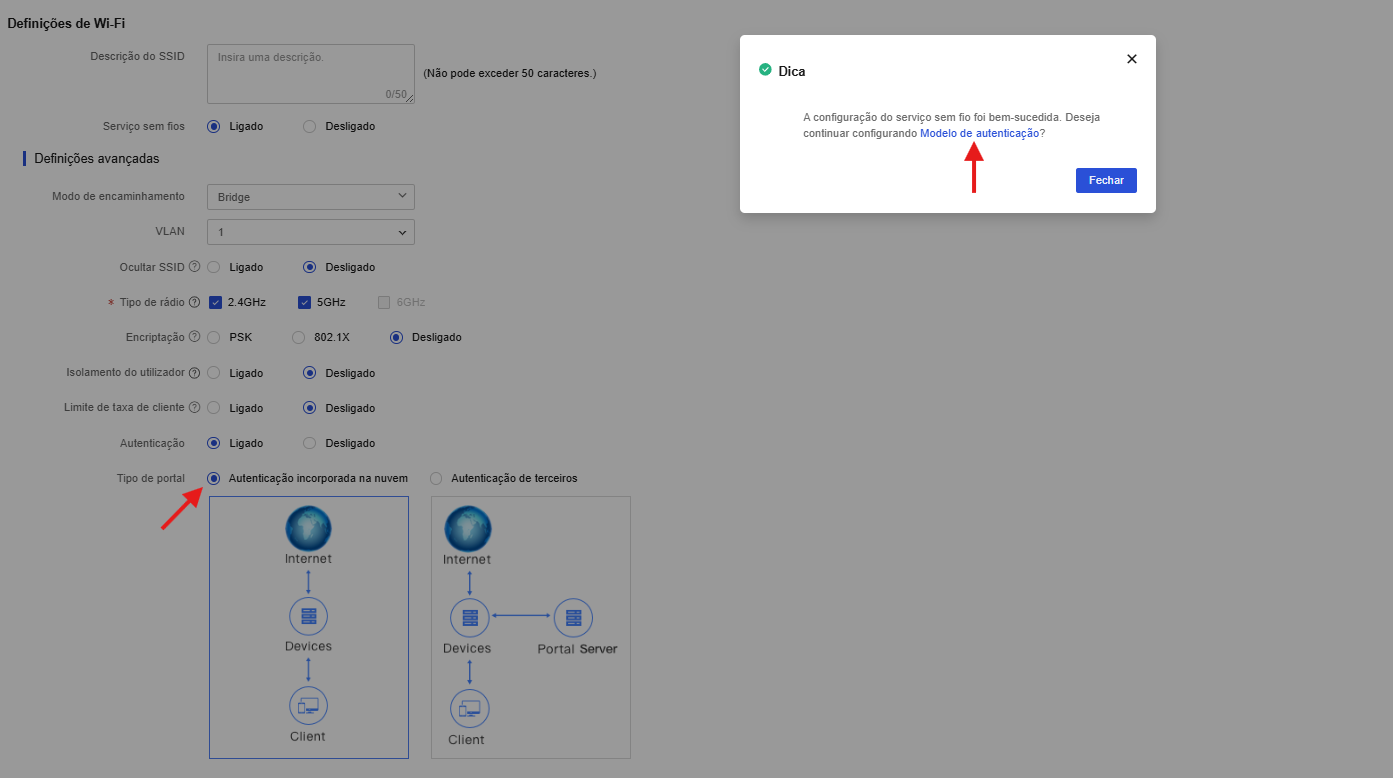
- In the SSID configuration window, locate the Advanced settings section and enable the Authentication field (select On).
- In the Portal type field, select Cloud-integrated authentication.
- Click OK. A confirmation message will be displayed asking if you want to continue configuring the Authentication template.
- Click Authentication template to go directly to the template drawing screen, where you can perform the same configuration steps described earlier.
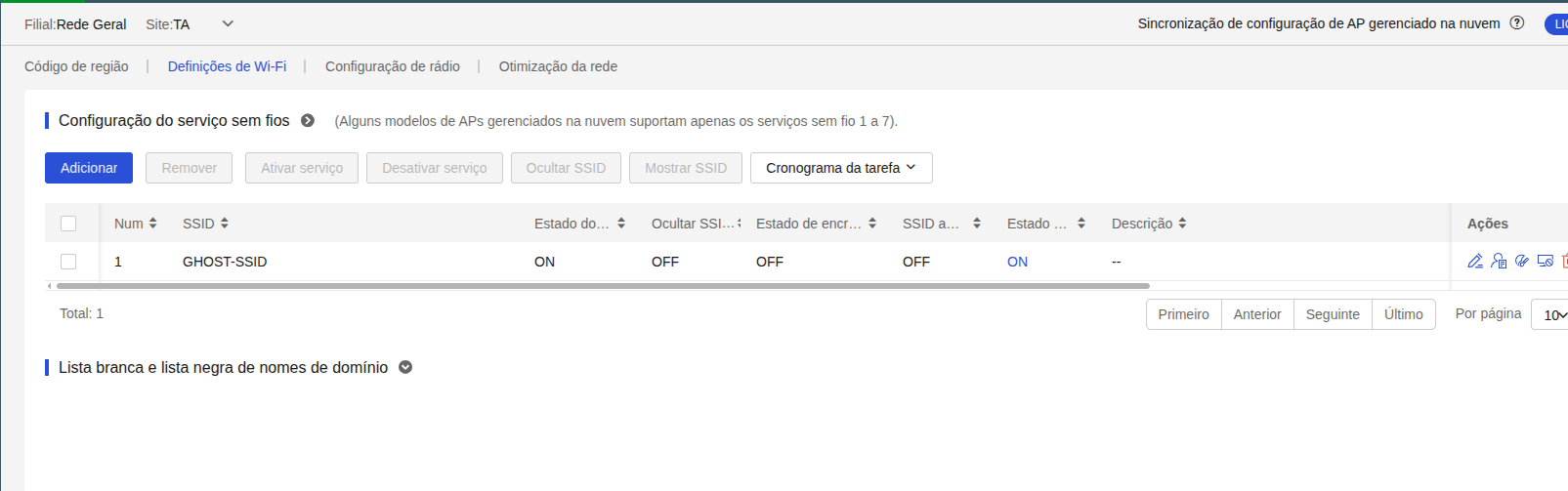
Add SSID
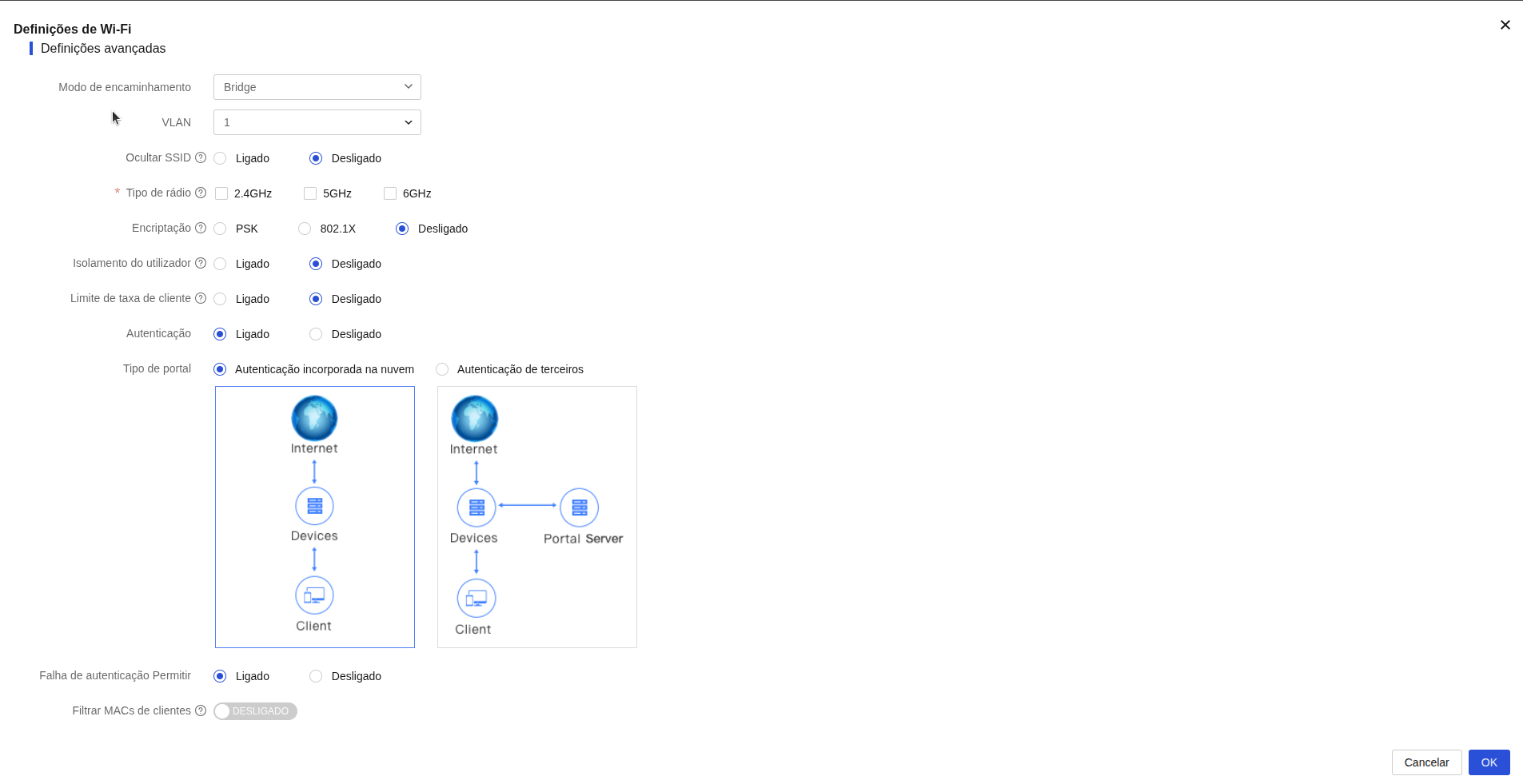
Portal type
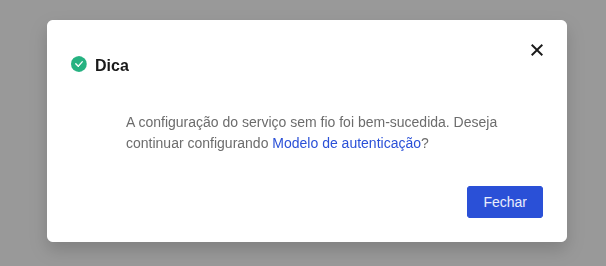
Authentication template
Next step: After accessing the template creation and drawing screen, the configuration and visual customization of the page depend on the chosen authentication method (such as One-Key, Voucher, SMS, Facebook, etc.). Go to the Captive portal design section to see the detailed step-by-step on how to configure and draw the capture page according to your needs.
Tip: If you closed the confirmation window without clicking Authentication template, you can access the drawing screen at any time. To do this, go back to Wi-Fi Settings, locate the SSID and click the Draw icon in the Actions column.
Linking the Captive Portal to SSIDs via Service menu
The steps to create and link the authentication portal template via the Service menu are described below.
1. Creation of the Authentication Template via Service menu
Before linking the authentication portal to the SSID, it is necessary to create and design the template in the centralized INC Cloud panel:
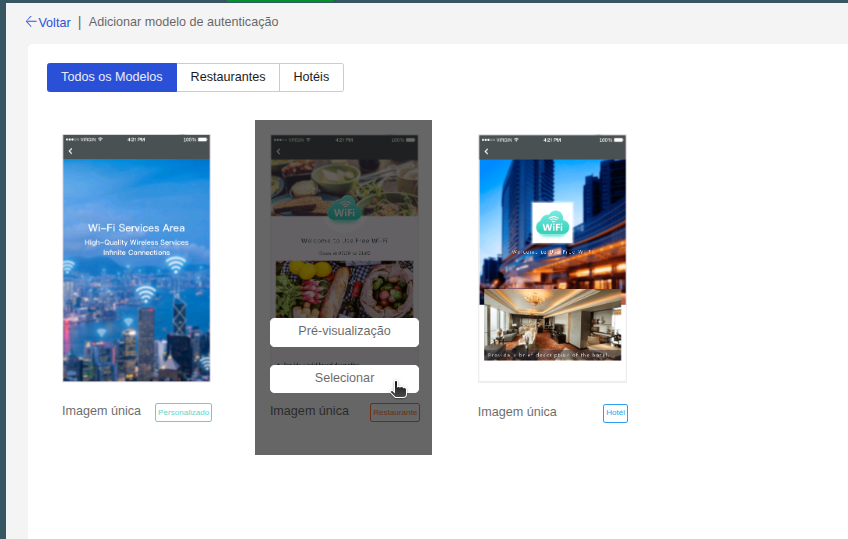
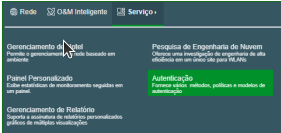
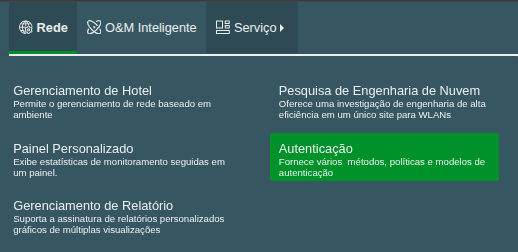
- On the top header, select the menu Service > Authentication.
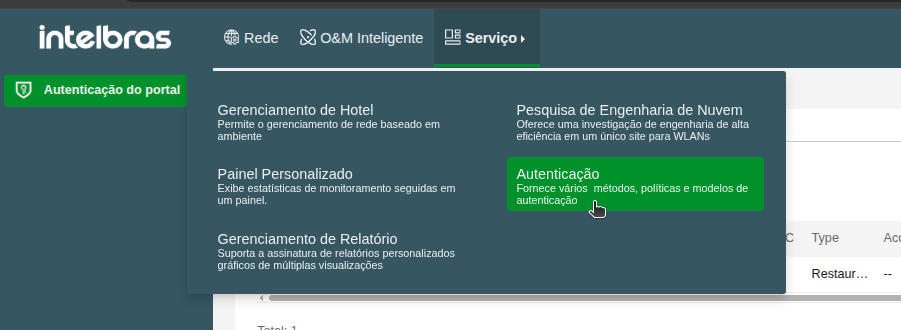
- Click Add to start creating the portal.
- Choose one of the available design templates and click Select (templates are fully editable).
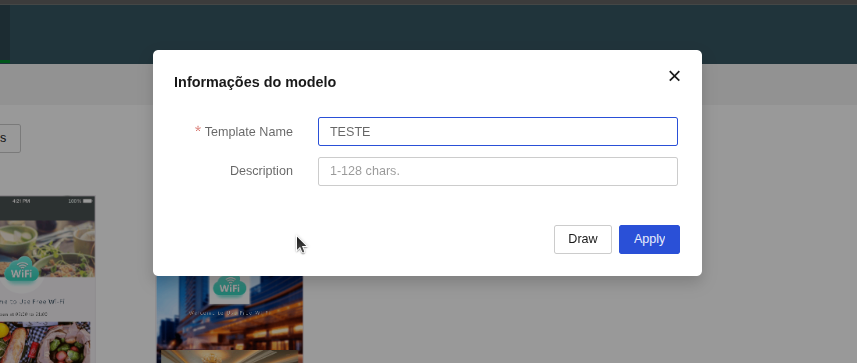
- Enter an identification name for your template and click Apply.
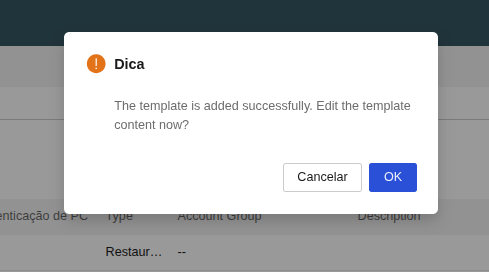
- Click OK to confirm and open the Captive Portal editor screen.
With the graphic editor open, configure the specific parameters described in the corresponding section under Captive portal design. Once you have saved and released the designed template, proceed with the linking steps below.
2. Linking the Template to SSIDs
Follow the step-by-step guide below to propagate the created portal template to multiple SSIDs and sites:
- Return to the Service > Authentication screen.
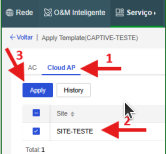
- On the created template, click the Issue Template button at the end of the registry row.
- Select the Cloud AP option, choose the Site, and click Apply.
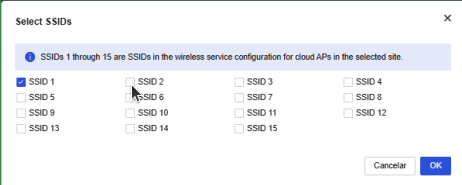
- Select the registered SSID code and confirm the change.
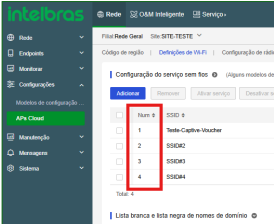
Note: To find out which SSID code to link, go to Network > Settings > Cloud APs > WLAN Settings > Wi-Fi Settings and check the number registered in the Num column.
- Confirm the linking by accessing the SSID settings and checking if the Cloud-integrated authentication option is checked with the name of the created portal.
Captive portal design
This section details the visual customization process and the configuration of specific parameters of the authentication portal in INC Cloud according to the chosen access method.
Configure One-Key authentication
One-Key authentication allows users to access the Wi-Fi network with just one click, without the need to fill out forms or enter credentials. It is the fastest and simplest solution for free access networks.
Drawing and Parameter Settings
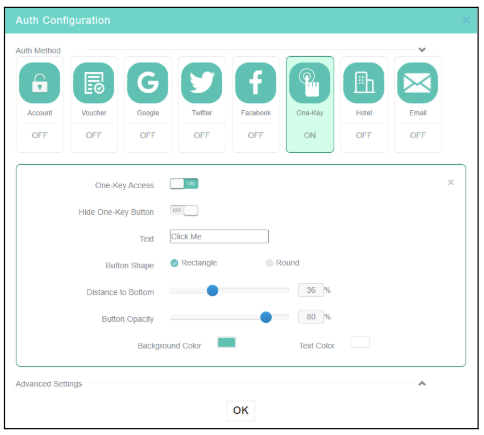
- In the Captive Portal editor, click the One-Key box in the Auth Configuration area.
- Enable the one-key authentication and confirm it. Configure other session settings as needed.
- Click OK or Release in the upper right corner of the page to save the template.
After configuring all parameters and completing the portal design for this authentication method, it will not be active on your network yet. For clients to start being directed to your captive portal, it is necessary to complete the final step of linking the generated template to the desired SSID. Please refer to the detailed step-by-step guides in the Direct Creation and Linking on SSID or Linking Template via Service menu sections.
Configure Fixed Account authentication
Fixed Account authentication requires the user to enter a predefined username and password to gain network access. It is ideal for secure connections for employees or recurring users.
Fixed Account authentication allows network access via a username and password. The way these accounts are created depends on how the administrator configures the portal.
Restrictions and guidelines
- If you do not configure the validity period or configure it as 0, the account never expires.
- If you select Bind MAC Address and do not enter any MAC addresses, clients that use the fixed MAC address might be excluded.
- The account is not limited.
- If you select Sent by Email, the system sends the account name and password to the specified email address. The number of email addresses cannot exceed 10 and must be separated by commas.
1. Drawing and Parameter Settings
- In the Captive Portal editor, in the Auth Method row, select the Account option and enable the configuration.
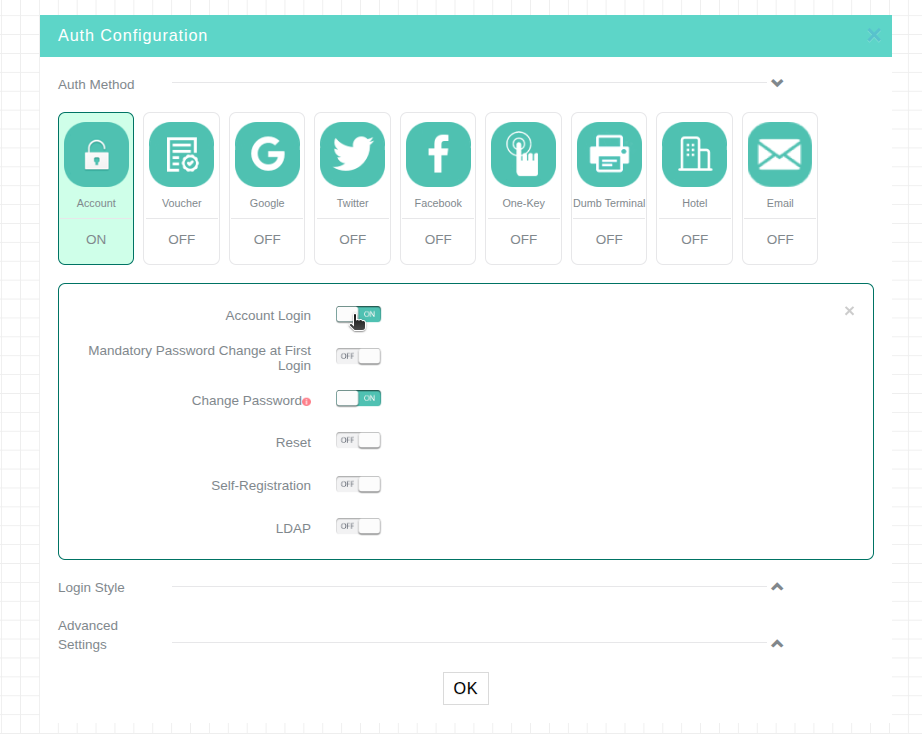
- In Advanced Settings, configure the session and idle time settings as needed.
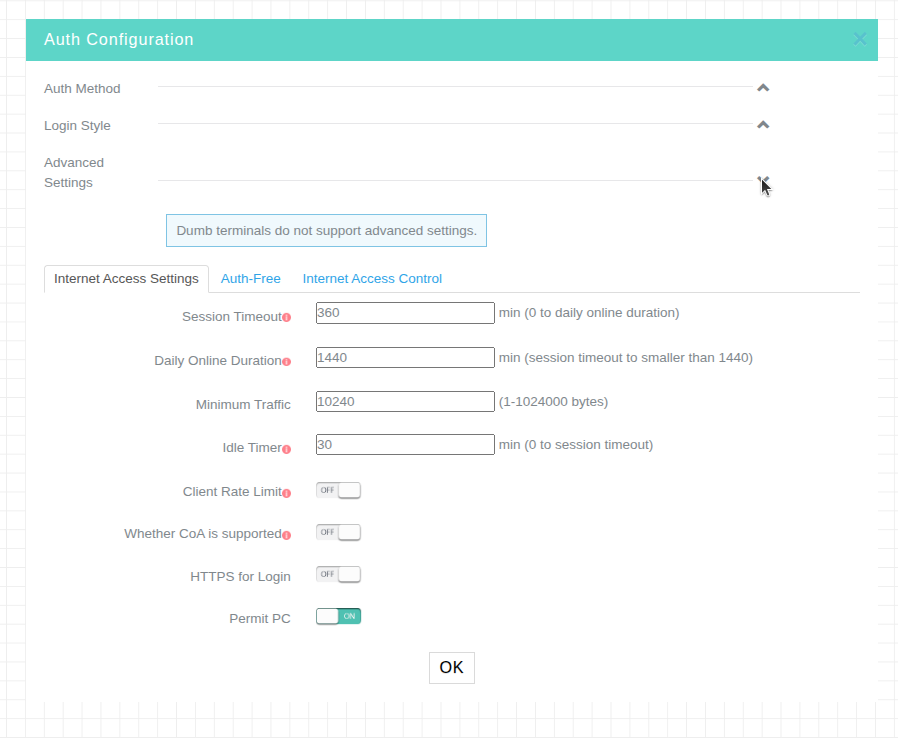
- After configuring these settings, click OK to save the template.
2. Fixed Account Generation for Authentication
- On the top navigation bar, select Settings > Cloud APs > Users.
- Select a branch and a site at the top of the page.
- Click the Portal Users tab and then click the Fixed Accounts tab.
- Click Add.
- Configure fixed account information as required and click OK.
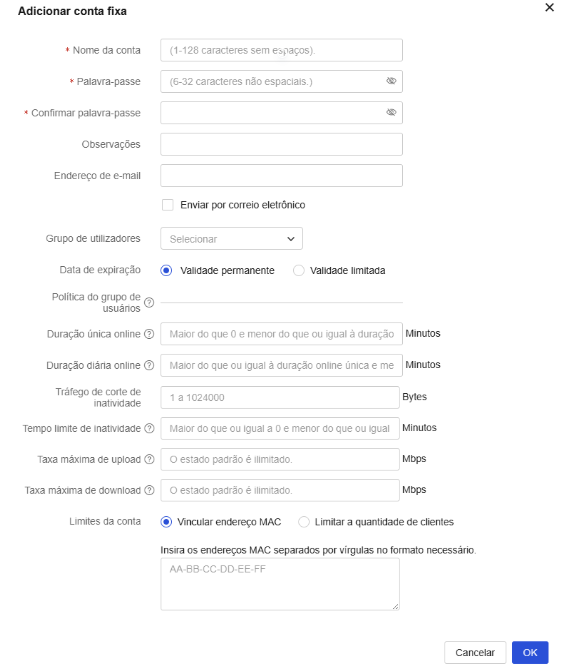
Self-Registration
By default, fixed account access management is handled by the network administrator, who is responsible for creating credentials (username and password) in the system and delivering them to users. With this option enabled, users can register themselves on the network without administrator intervention. When self-registration is enabled, the Required Registration Info options appear. Select the information you want users to provide when registering on the network.
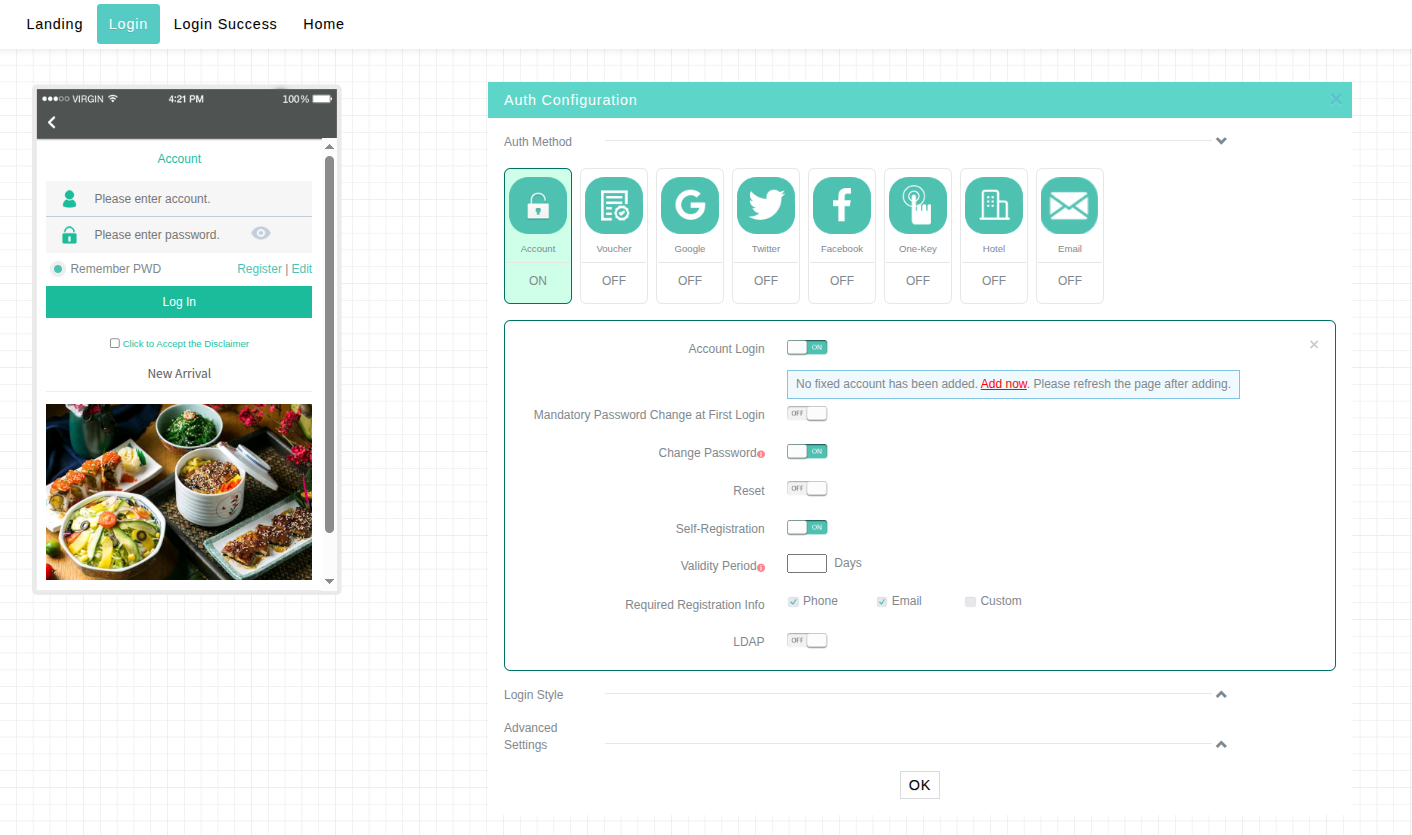
Custom field: When you select this option, you can create a free-form field to request additional information during registration, such as a tax ID or employee number.
The Custom field is available exclusively when editing the template linked to the SSID. To access it, navigate to: Network > Cloud APs > WLAN Settings > Wi-Fi Settings.
If the SSID already exists and authentication is enabled, click the Draw icon (color palette) in the corresponding Actions column to open the authentication template.
Otherwise, click Add to create a new SSID, go to Advanced settings > Authentication: Enabled > Portal type: Cloud-integrated authentication, and upon saving click to configure the Authentication template.
On the template editing screen, the Custom field will be available in the Required Registration Info options of the template linked to that SSID.
Important: If you create the template using the Service > Authentication method and link it to the SSID later (as described in Linking Template via Service menu), the Custom field will not be available in the registration info menu. The Custom field can only be enabled and configured if the template is created directly in the SSID profile, using the Direct Creation and Linking on SSID method.
Data entered in this field is not validated by the system. The portal only requires that the field not be left blank, but does not verify the authenticity or format of the information. For example, if the field is intended to capture a tax ID, the user will be able to complete registration even if they type letters or an invalid number sequence.
Next Step: Linking to the SSID
After configuring all parameters and completing the portal design for this authentication method, it will not be active on your network yet. For clients to start being directed to your captive portal, it is necessary to complete the final step of linking the generated template to the desired SSID. Please refer to the detailed step-by-step guides in the Direct Creation and Linking on SSID or Linking Template via Service menu sections.
Configure Google authentication
Google authentication allows visitors to connect to the Wi-Fi network using their Google account credentials. To enable this integration, it is necessary to previously create an OAuth project in the Google Developer Console.
Creating a Google app
1. Log in to the Google Cloud Platform at https://console.cloud.google.com/apis.

2. Click CREATE PROJECT to create a project.
Project creation
3. Set the basic project settings and click Create.
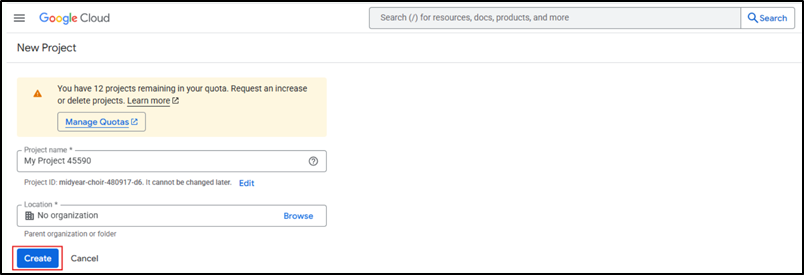
Basic settings of the project
4. Configure the OAuth consent screen settings.
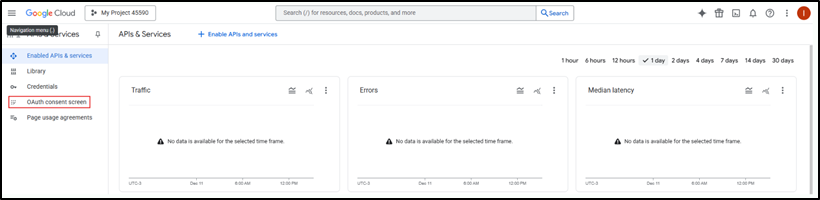
Entering the OAuth consent screen
- Select External as the user type on the audience screen.
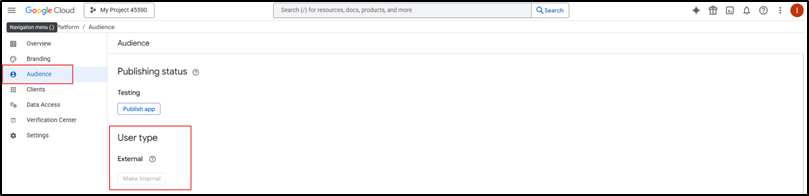
Selecting a user type
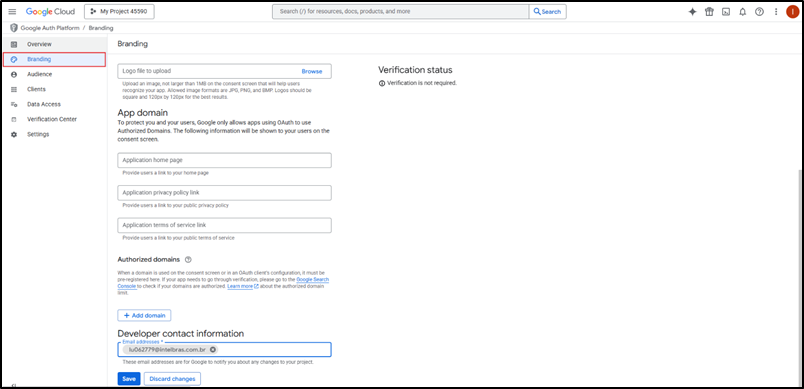
- Edit app registration settings. Go to the branding tab.
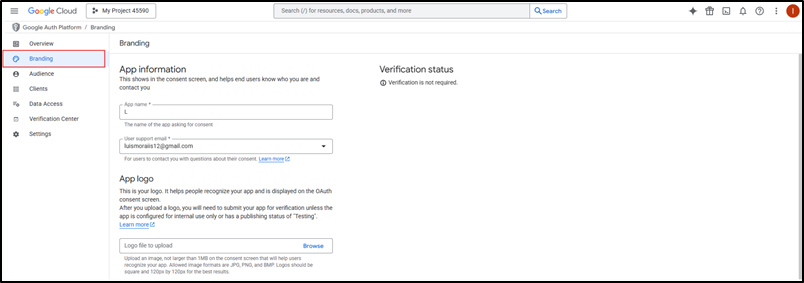
Editing app registration settings
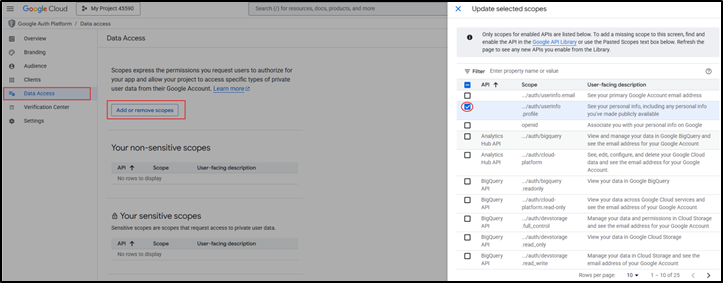
- Configure scopes. You only need to select userinfo.profile.
Updating scopes
- Configure test users. Click Add Users to add test users. Only test users can log in to a Google app in the Testing state.
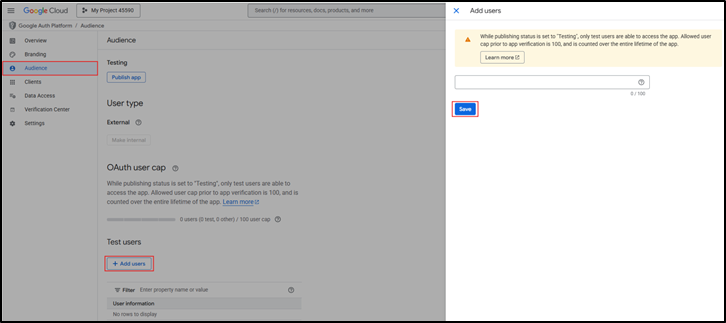
Adding test users
- Create credentials. Click CREATE CREDENTIALS and then click OAuth client ID.
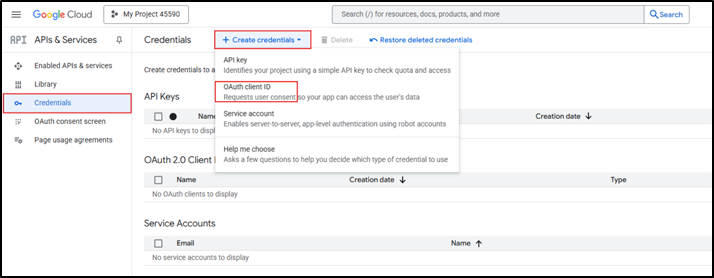
- Select Web application as the application type.
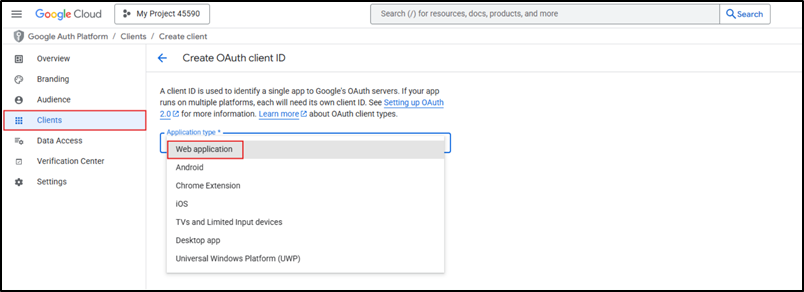
Selecting an application type
- Add authorized JavaScript origins and authorized redirect URLs. The authorized redirect URI is https://oasiscloudportal.intelbras.com/portal/googleCallback.html. The specified JavaScript origins must start with https.
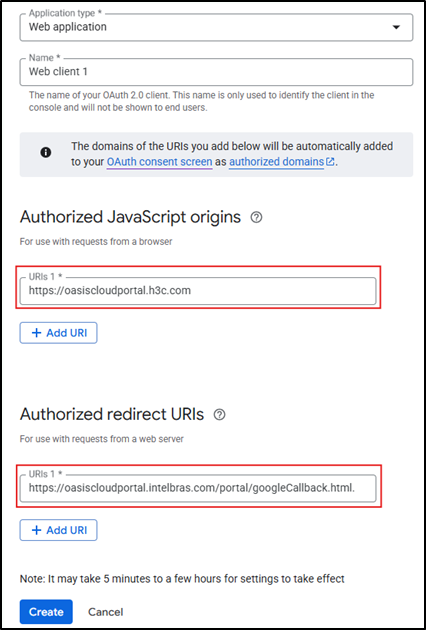
Authorized JavaScript origins and authorized redirect URIs
5. Once the credential is created, click Credentials in the left navigation panel. In the list that opens, click Edit OAuth client in the Actions column of the OAuth 2.0 Client IDs row. On the page that opens, you can view the client ID and client secret.
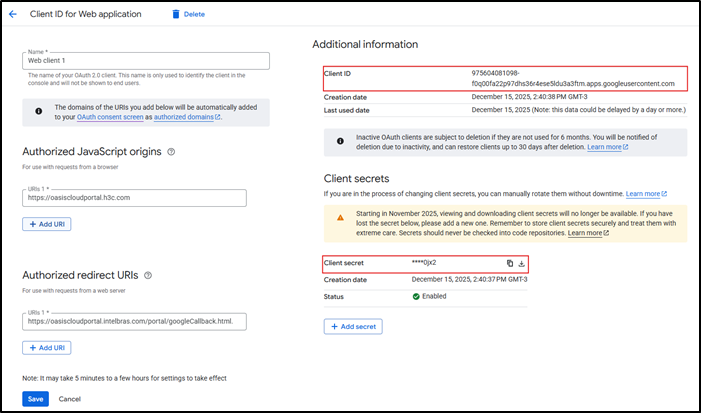
Client information
Drawing and Parameter Settings
- In the Captive Portal editor, click the Google box in the Auth Configuration area and enable Google authentication.
- Enter the client ID and client secret, and configure other settings as needed.
- Click OK and then click Release in the upper right corner of the page to save.
Google authentication can be used in combination with:
- Fixed Account authentication.
- Member authentication.
- Facebook authentication.
- Twitter authentication.
You can use up to three authentication methods simultaneously.
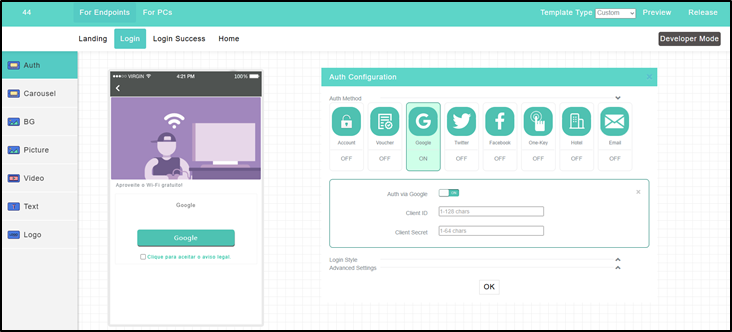
Google authentication
After configuring all parameters and completing the portal design for this authentication method, it will not be active on your network yet. For clients to start being directed to your captive portal, it is necessary to complete the final step of linking the generated template to the desired SSID. Please refer to the detailed step-by-step guides in the Direct Creation and Linking on SSID or Linking Template via Service menu sections.
Configure Twitter authentication
Twitter authentication allows users to authenticate to the network using their Twitter credentials. This method requires previously creating an app on the Twitter Developer Platform.
Creating a Twitter app
- Log in to the Twitter Developer Platform at https://developer.twitter.com.
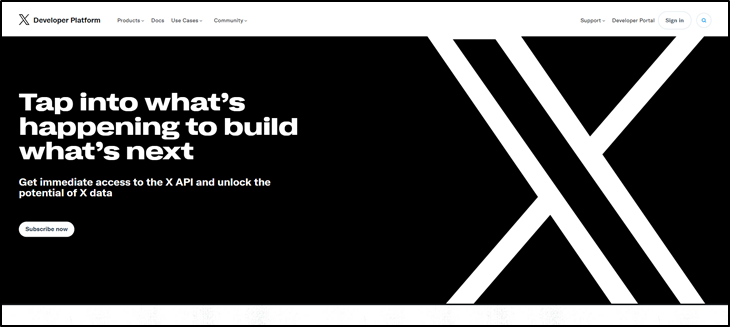
Home page
- Register for a developer account and accept terms. The API account is created by default. Then change the following settings.
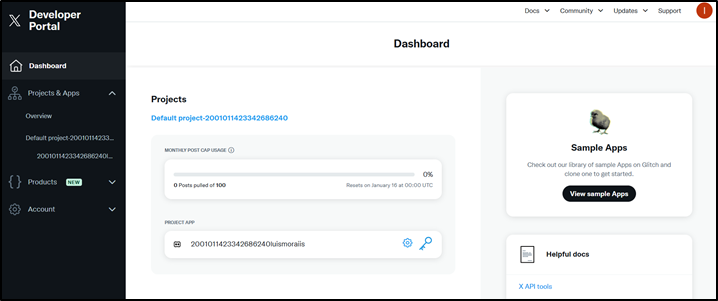
Dashboard with created account
- Record the API key and API key secret. They will be used later.
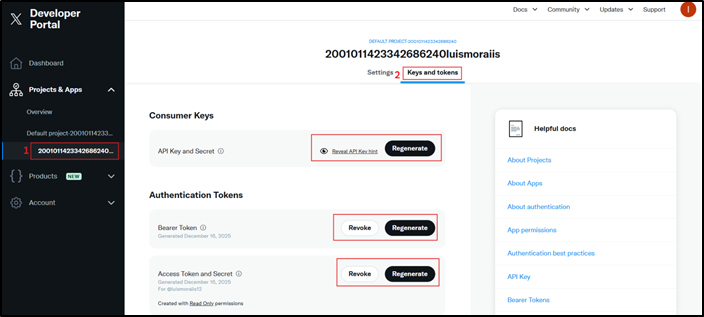
Passwords
- Configure app settings. Click App settings in the Apps area.
- Click Set up in the User authentication settings area.
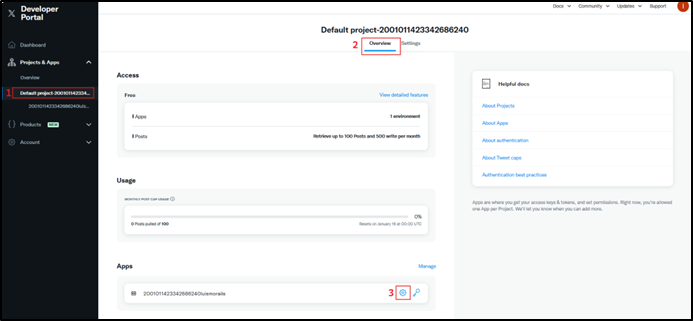
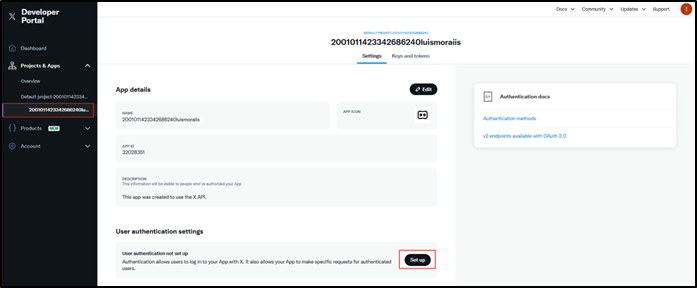
User authentication settings
- Enable OAuth 1.0a.
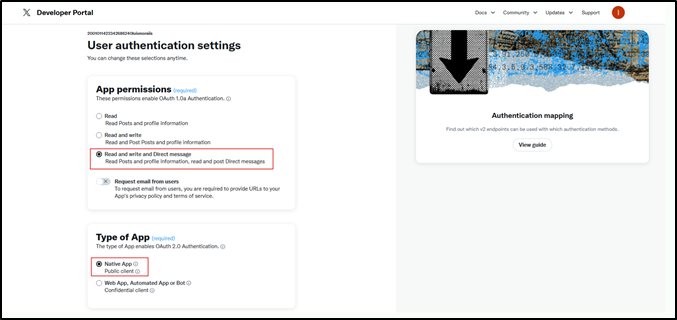
OAuth 1.0a enablement
- Specify a redirect URL and a website URL.
- Redirect URL: https://oasiscloudportal/portal/twitterCallback.html.
- Website URL: enter a URL in domain name format.
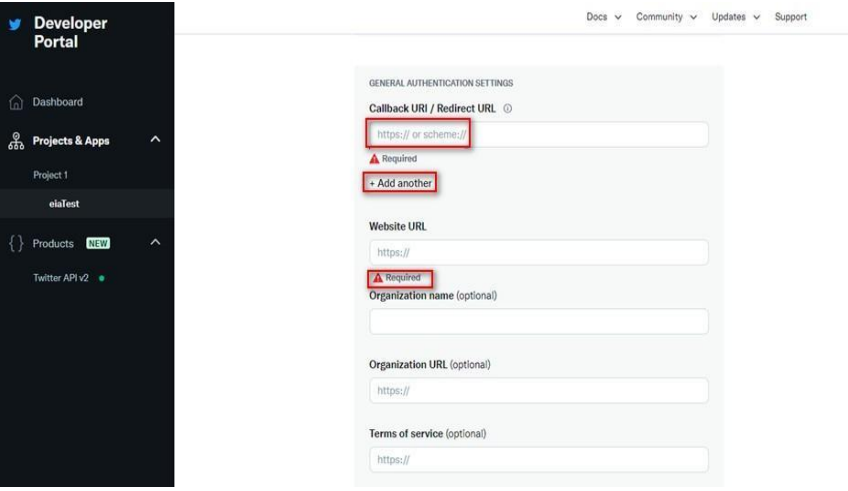
Redirect URL and website URL
Drawing and Parameter Settings
- In the Captive Portal editor, click the Twitter box in the Auth Configuration area and enable Twitter authentication.
- Enter the app ID and app secret of the Twitter app created previously. Configure other options as needed and save the template.
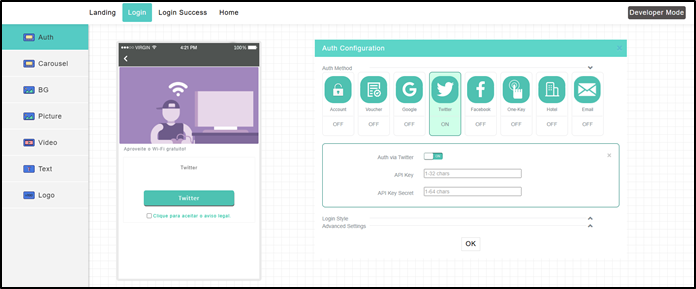
Twitter authentication can be used in combination with:
- Fixed Account authentication.
- Member authentication.
- Facebook authentication.
- Google authentication.
You can use up to three authentication methods simultaneously.
Twitter authentication
After configuring all parameters and completing the portal design for this authentication method, it will not be active on your network yet. For clients to start being directed to your captive portal, it is necessary to complete the final step of linking the generated template to the desired SSID. Please refer to the detailed step-by-step guides in the Direct Creation and Linking on SSID or Linking Template via Service menu sections.
Configure Voucher authentication
Voucher authentication allows users to connect to the Internet using a temporary access code generated by the system. It is ideal for controlling session durations in hotels, cafes, and events.
1. Drawing and Parameter Settings
- In the Captive Portal editor, in the Auth Method row, select the Voucher option and enable the configuration.
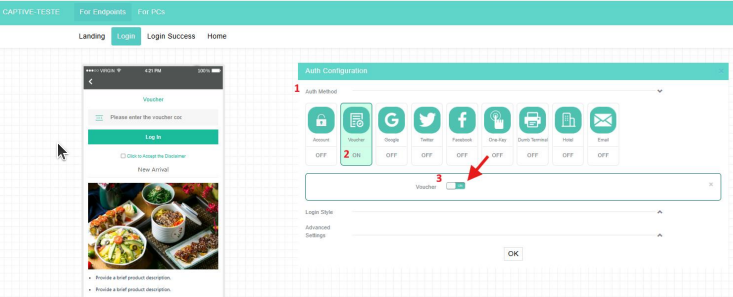
- In Advanced Settings, configure the time limit options according to your plan:
- Session Timeout: Duration of the session (in minutes). It cannot exceed the daily limit.
- Daily Online Duration: Daily connection limit for a client (maximum of 1440 minutes / 24h).
- Idle Timer: Idle time. The client is disconnected after this period of inactivity (in minutes).
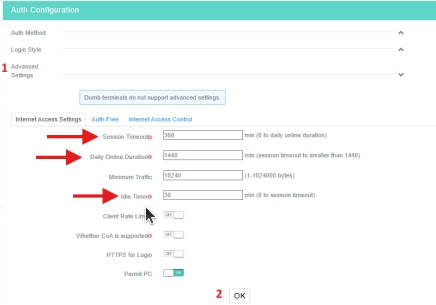
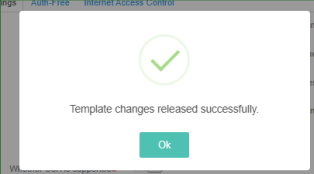
- After configuring these settings, click OK to save the template.
2. Voucher Generation for Authentication
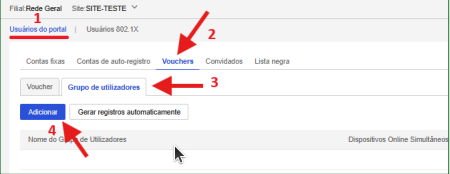
- On the top navigation bar, select Settings > Cloud APs > Users.
- Select a branch and a site at the top of the page.
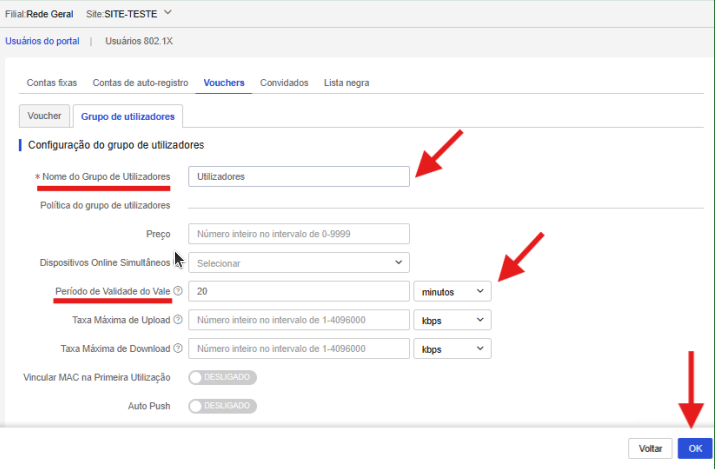
- Access the Voucher tab, click User group, and click Add. Enter the group name and the voucher validity duration. When finished, click OK to save.
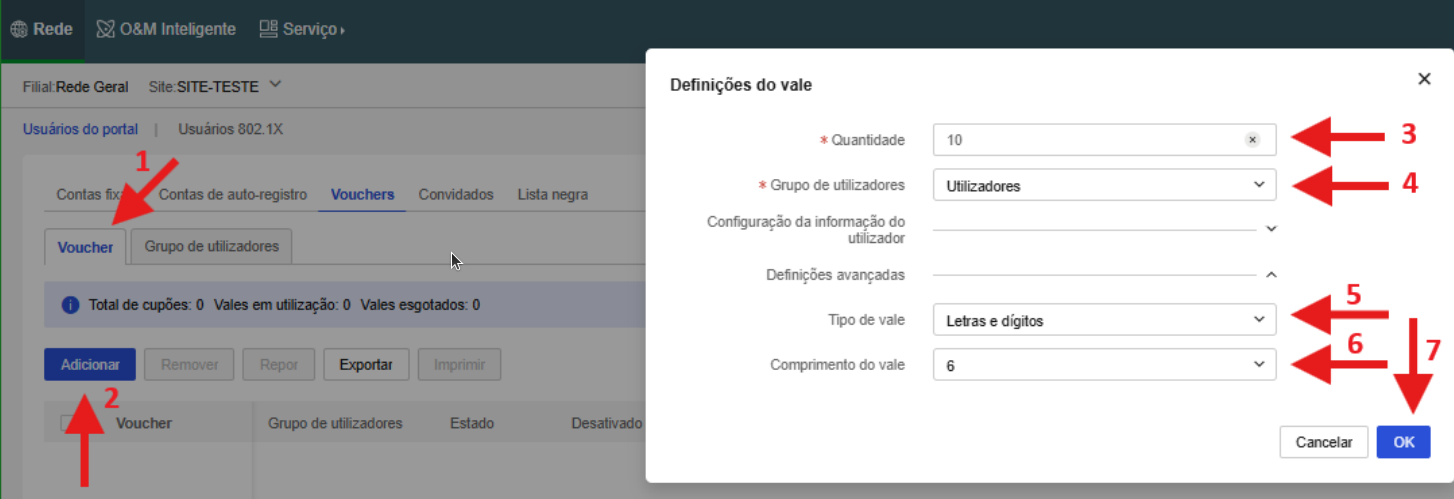
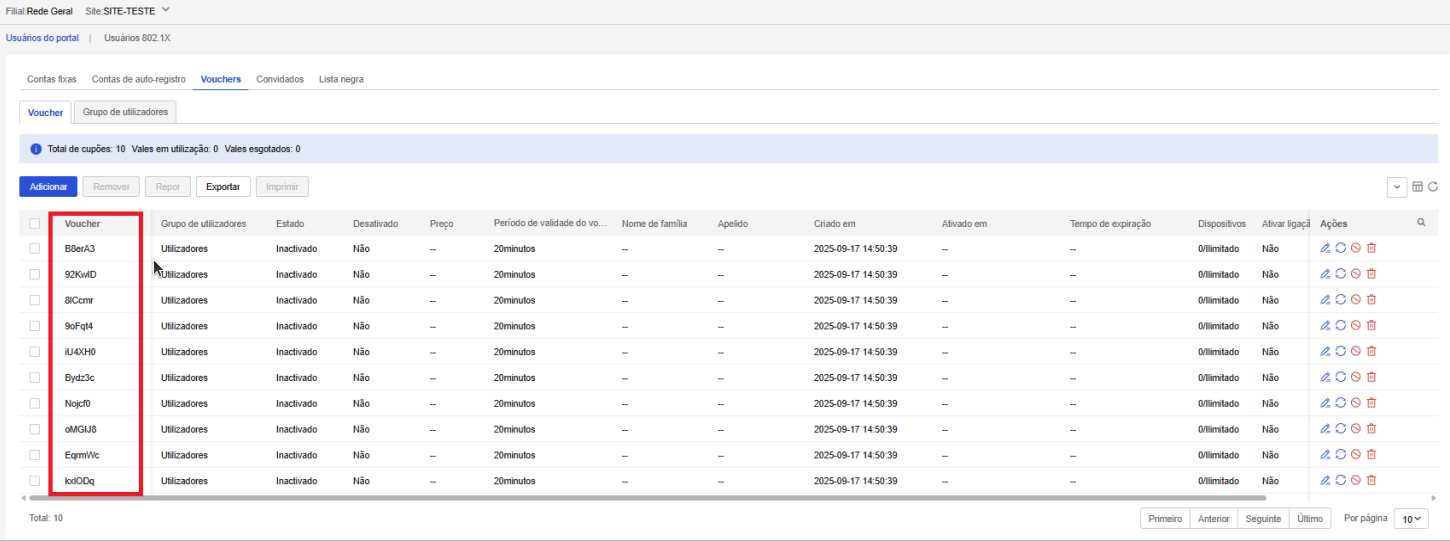
- Access the Voucher tab to generate the codes. Click Add, set the quantity, select the group configured in the previous step, the voucher type, and the character length. Click OK to save. The codes will be visible in the Voucher column.
Next Step: Linking to the SSID
After configuring all parameters and completing the portal design for this authentication method, it will not be active on your network yet. For clients to start being directed to your captive portal, it is necessary to complete the final step of linking the generated template to the desired SSID. Please refer to the detailed step-by-step guides in the Direct Creation and Linking on SSID or Linking Template via Service menu sections.
Configure Hotel authentication
Hotel authentication integrates the login portal with hotel check-in databases, requiring guests to enter details like room number and last name to unlock Internet access.
1. Hotel ID Creation
- On the top navigation bar, click the Service menu.
- Select Authentication > Accounts > Hotel ID to add a hotel.
- To add a hotel, click Add in the Hotel ID tab.
2. Drawing and Parameter Settings
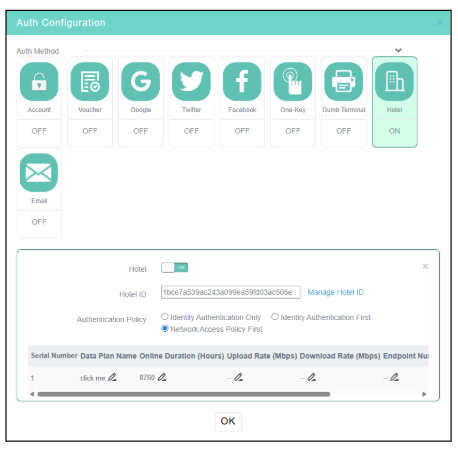
- In the Captive Portal editor, click the Hotel box in the Auth Configuration area and enable Hotel authentication.
- Select the Hotel ID created previously. Configure other control options as needed.
- Click OK and click Release in the upper right corner of the page to save.
After configuring all parameters and completing the portal design for this authentication method, it will not be active on your network yet. For clients to start being directed to your captive portal, it is necessary to complete the final step of linking the generated template to the desired SSID. Please refer to the detailed step-by-step guides in the Direct Creation and Linking on SSID or Linking Template via Service menu sections.
Configure Email authentication
Email authentication requires users to provide a valid email address to receive a one-time access passcode. This method is ideal for validating visitors' contact information.
Drawing and Parameter Settings
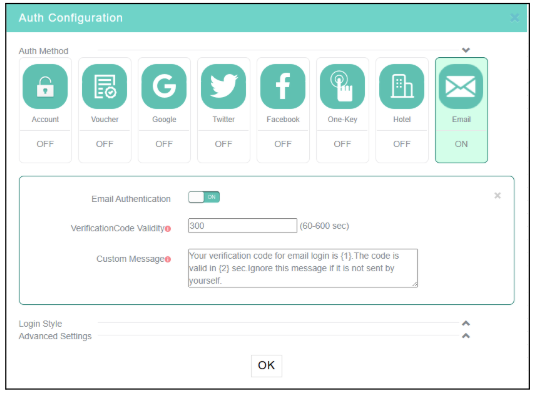
- In the Captive Portal editor, click the Email box in the Auth Configuration area and enable Email authentication.
- Confirm the Email authentication, setting the additional session parameters according to your preferences.
- Click OK and click Release in the upper right corner of the page to save.
After configuring all parameters and completing the portal design for this authentication method, it will not be active on your network yet. For clients to start being directed to your captive portal, it is necessary to complete the final step of linking the generated template to the desired SSID. Please refer to the detailed step-by-step guides in the Direct Creation and Linking on SSID or Linking Template via Service menu sections.
Configure Facebook authentication
With Facebook authentication enabled, users will be redirected to the Facebook login page for authentication. They will be able to access the network only after granting INC Cloud access to their Facebook information (nickname, profile, and email info).
Creating a Facebook app
- Log in to Meta for Developers at https://developers.facebook.com.
- Click Create app to create a Facebook app.
- Specify the app name.
- Start business verification and finish creation.
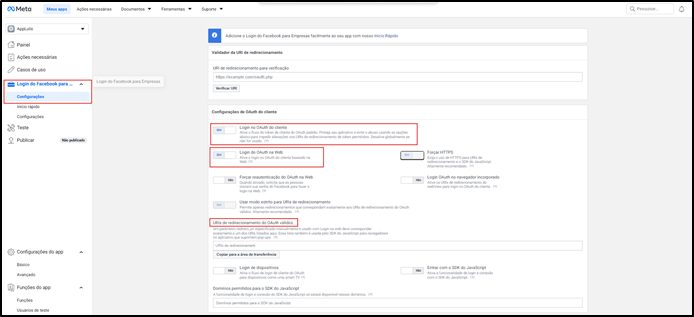
- On Meta for Developers, enable Client OAuth Login and Web OAuth Login and enter the login URL as a valid redirect URI.
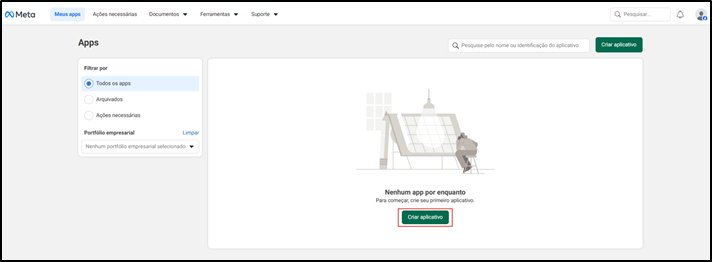
Creating an app
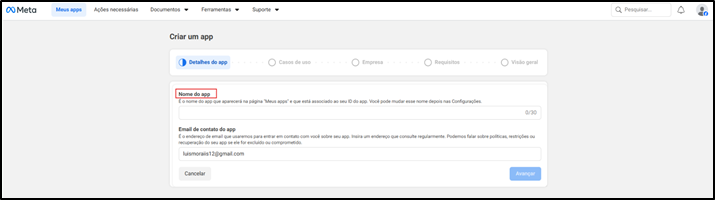
Specifying the app name
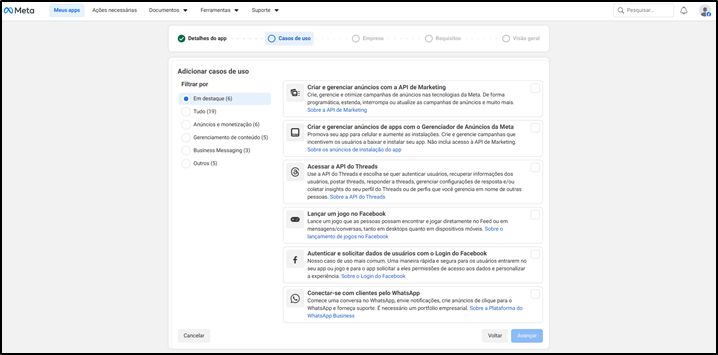
Business verification and finalization
Drawing and Parameter Settings
- In the Captive Portal editor, click the Facebook box in the Auth Configuration area and enable Facebook authentication.
- Enter the app ID and app secret. Configure other options as needed.
- Click OK or Release in the upper right corner of the page to save.
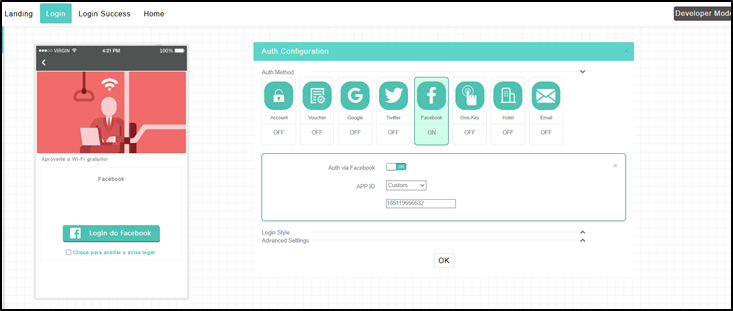
Facebook authentication configuration
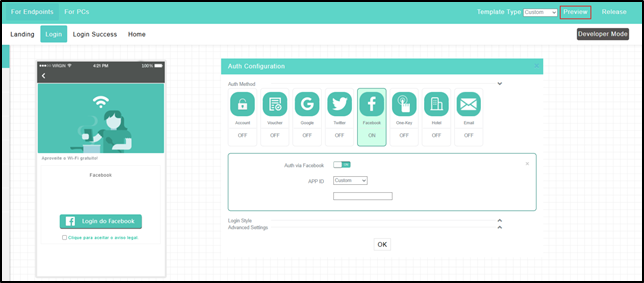
Portal authentication configuration page
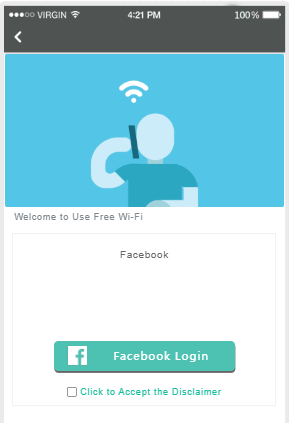
Portal login preview page
Configure Facebook authentication
Important:
» Execute commands in this section after you finish the settings in Configure
general settings or Appendix A Authentication commands for the
device.
» Free-rule 38 might disable the app from displaying pictures. Please configure this rule as
needed or contact technical support.
# Configure destination-based portal-free rules to allow portal users who send an HTTP/HTTPS request that carries Facebook-related host names to access network resources without authentication.
<Sysname> System-View
                        [Sysname] portal free-rule 31 destination facebook.com
                        [Sysname] portal free-rule 32 destination m.facebook.com
                        [Sysname] portal free-rule 33 destination www.facebook.com
                        [Sysname] portal free-rule 34 destination graph.facebook.com
                        [Sysname] portal free-rule 35 destination connect.facebook.net
                        [Sysname] portal free-rule 36 destination static.xx.fbcdn.net
                        [Sysname] portal free-rule 37 destination staticxx.fbcdn.com
                        [Sysname] portal free-rule 38 destination scontent-hkg-3-1.xx.fbcdn.net
Next Step: Linking to the SSID
After configuring all parameters and completing the portal design for this authentication method, it will not be active on your network yet. For clients to start being directed to your captive portal, it is necessary to complete the final step of linking the generated template to the desired SSID. Please refer to the detailed step-by-step guides in the Direct Creation and Linking on SSID or Linking Template via Service menu sections.
Configure combined authentication
Restrictions and guidelines
The following authentication methods can be used together:
- Fixed account authentication.
- Voucher authentication.
- Google authentication.
- Twitter authentication.
- Facebook authentication.
- Email authentication.
A user can access the network as long as they pass one authentication.
Procedure
- Configure settings on the device as described if the software version of the device is lower than 5405.
- Select Service > Authentication > Authentication Templates. Select multiple authentication methods on the design page.
Next Step: Linking to the SSID
After configuring all parameters and completing the portal design for this authentication method, it will not be active on your network yet. For clients to start being directed to your captive portal, it is necessary to complete the final step of linking the generated template to the desired SSID. Please refer to the detailed step-by-step guides in the Direct Creation and Linking on SSID or Linking Template via Service menu sections.
Configure Dumb terminal authentication
Restrictions and guidelines
- If an account group contains accounts that have been authenticated, changing the validity period of the account group changes the validity period of all accounts in the group.
- If you configure the validity period as 0, the account never expires.
- You can enter the first three bytes to add MAC addresses in bulk. The configuration of the validity period of a full MAC address and that of a three-byte MAC address are not mutually exclusive. Suppose you add MAC addresses that start with AA-BB-CC and specify a validity period of 5 days, and then add the MAC address AA-BB-CC-11-22-33 and specify a validity period of 10 days. The validity periods of Dumb terminals with a MAC address of AA-BB-CC-11-22-33 and a MAC address that starts with AA-BB-CC are 10 and 5 days, respectively.
Procedure
- On the top navigation bar, click Service.
- Select Authentication in the navigation panel and click the Accounts tab.
- On the Dumb Terminal Accounts tab, click Edit Account Group.
- Click Add.
- Enter the required info and click OK.
- Select an account group and click Add.
- Enter a MAC address in the required format.
- In the Captive Portal editor, click the Dumb terminal box in the Auth Configuration area and enable Dumb terminal authentication.
- Select the account group created in the previous step.
- Click OK or Release in the upper right corner of the page to save.
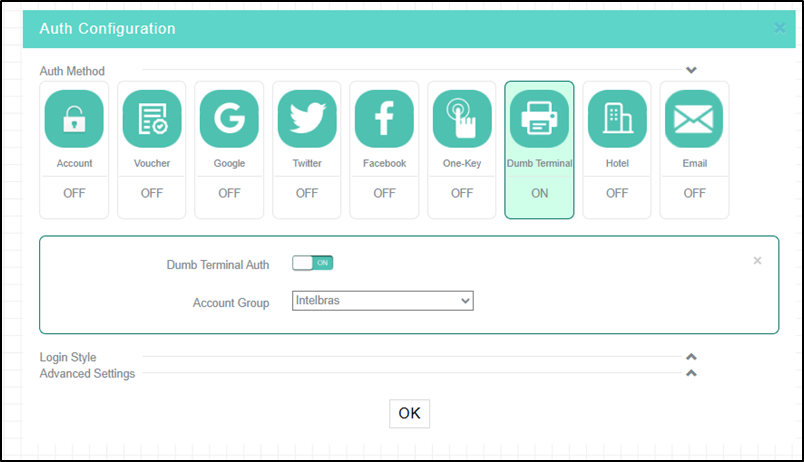
Dumb terminal authentication configuration
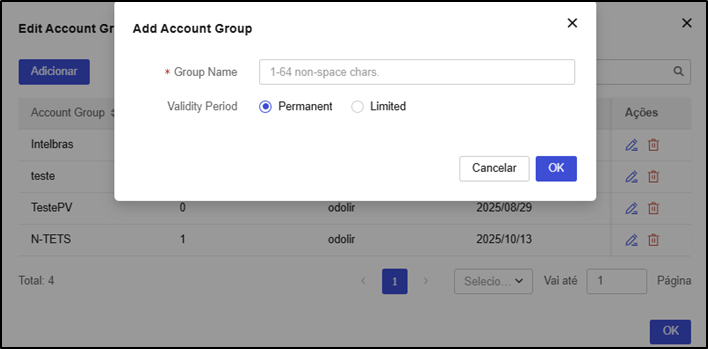
Adding an account group
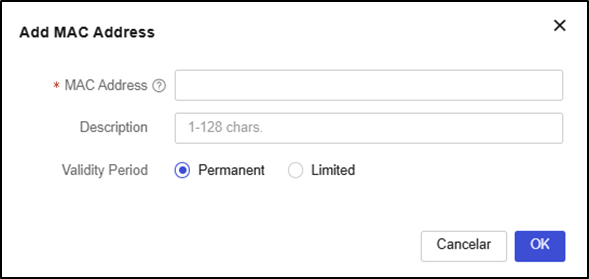
Adding a MAC address
After configuring all parameters and completing the portal design for this authentication method, it will not be active on your network yet. For clients to start being directed to your captive portal, it is necessary to complete the final step of linking the generated template to the desired SSID. Please refer to the detailed step-by-step guides in the Direct Creation and Linking on SSID or Linking Template via Service menu sections.
Configure bulk authentication
Perform this task to implement bulk authentication settings.
Restrictions and guidelines
- The configuration of a bulk authentication template takes precedence over that of a non-bulk authentication template. For the non-bulk authentication template to take effect, click the Edit icon for that template and then click Apply.
- Before implementing the bulk configuration, make sure the following requirements are met:
- The devices on which bulk authentication is deployed are online. If one is offline, the implementation will fail for it.
- The wireless service name is the same as the portal web server name.
Procedure
- After creating and designing the authentication template, on the template list screen (Service > Authentication), click the Deploy Template icon in the Actions column of the corresponding record.
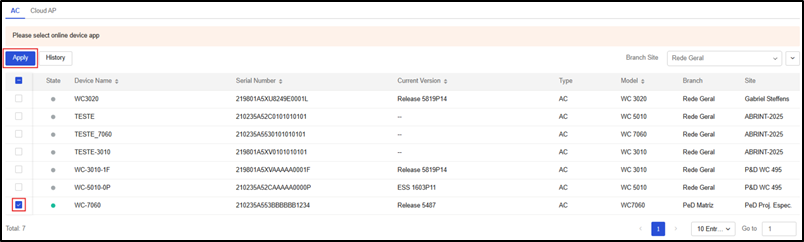
- In the window that opens, click the ACs tab.
- Select the desired branch or location.
- Select the corresponding device or site and click Apply.
After configuring all parameters and completing the portal design for this authentication method, it will not be active on your network yet. For clients to start being directed to your captive portal, it is necessary to complete the final step of linking the generated template to the desired SSID. Please refer to the detailed step-by-step guides in the Direct Creation and Linking on SSID or Linking Template via Service menu sections.
Customize authentication page
You can configure the landing page, login page, login success page, and home page, and you can push or disable the landing page or login success page as needed.
Restrictions and guidelines
- The image size cannot exceed 1 M. As a best practice, set the image size between 100 KB and 200 KB. Only JPG, JPEG, BMP, PNG, GIF, and SVG formats are allowed.
- As a best practice to avoid affecting page loading speed, do not add too many controls.
Procedure
- In the Captive Portal editor (template design screen), configure the settings shown in the Preview of configuration changes:
- Logo: the aspect ratio must be 1:1. The image will be automatically cropped into a circle. You can enter a store name shorter than 12 characters.
- Background: the aspect ratio must be 3:5.
- Carousel: the aspect ratio must be 11:5. Two or three images with the same height are required.
- Image: the aspect ratio must be 11:5. The image description cannot exceed 48 characters.
- Video: the video size cannot exceed 5 M. Only MP4, WEBM, and OGG formats are allowed.
- Text: you can edit the font, font size, bold, and font color.
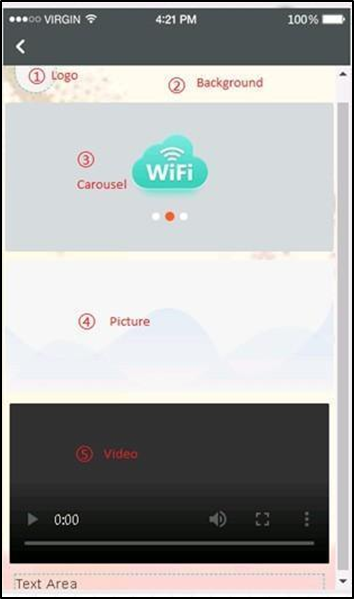
Description of custom template
- To configure the home page, click the Home tab and select Use custom link.
- Enter a custom link and click Upload.
- To preview the link, click Preview in the upper right corner of the page.
Configure advanced settings
INC Cloud provides advanced authentication settings to simplify authentication management, reduce costs, and optimize market promotion. The INC Cloud Advanced Authentication Features table describes the advanced features available for each authentication method. You can configure these settings as needed.
INC Cloud advanced authentication features:
| Authentication method | Advanced features |
|---|---|
| One-key authentication | Captive bypass Hide and customize the One-key authentication button Internet access settings Free authentication Cross-site and cross-SSID re-authentication Developer mode Internet access control Domain name blacklist View and export authentication configuration deployment history |
| Fixed account authentication | Captive bypass Bulk account management Self-service password change Collaboration with LDAP server Change visual effects of the login page Internet access settings Free authentication Cross-site and cross-SSID re-authentication Developer mode Internet access control Domain name blacklist View and export authentication configuration deployment history |
| Dumb terminal authentication | Captive bypass Dumb terminal account group management Developer mode Domain name blacklist View and export authentication configuration deployment history |
Activate the captive-bypass feature
Normally, the device automatically sends the authentication page to a client when the client attempts to access the portal of an authentication network. The captive-bypass feature allows the device to send the portal authentication page to the client only when the user launches a browser.
To activate the captive-bypass feature, you must perform the following steps on the device:
- Enter system view.
system-view - Enter the portal web-server view.
portal web-server Cloud - Enable the captive-bypass feature.
captive-bypass enable
Hide or customize the One-key authentication button
Perform this task to hide the One-key authentication button or change the button style. If the button is hidden, users pass through authentication automatically after the countdown timer on the login page expires.
Restrictions and guidelines
You can change the button style only when the button is not hidden.
Procedure
- On the top navigation bar, click Service.
- Select Authentication > Authentication Templates.
- If you do not have a template or need a new one, click Add.
- To edit an authentication template, click the Edit icon for that authentication template.
- Click the Draw icon for the target authentication template.
- Click the One-Key tile in the Auth Configuration area, and then hide or customize the button as needed.
Manage fixed Accounts
Perform this task to delete, import, or export accounts in bulk. To manage accounts:
- On the top navigation bar, click Network.
- Select Settings > Cloud APs > Users from the navigation pane.
- Click the Portal Users tab and then click the Fixed Accounts tab.
- To delete accounts, select the target accounts and click Delete.
- To import accounts, click Import, download the template file, fill in the file as needed, and then upload the template file.
- To export accounts, click Export.
Enable self-service password change
This feature allows users to change passwords during login.
To enable self-service password change:
- On the top navigation bar, click Service.
- Select Authentication > Authentication Templates.
- If you do not have a template or need a new one, click Add.
- To edit an authentication template, click the Edit icon for that authentication template.
- Click the Draw icon for the target authentication template.
- Click the Account tile in the Auth Configuration area.
- Enable change password.
Allow collaboration with an LDAP server for account verification
Perform this task to allow INC Cloud to report usernames and passwords to the LDAP server for verification when users attempt to access the WLAN using accounts. This frees network administrators from importing account information from the LDAP server to INC Cloud.
Restrictions and guidelines
To use this feature, ensure that the LDAP server has been configured.
Procedure
- On the top navigation bar, click Service.
- Select Authentication > Authentication Templates.
- If you do not have a template or need a new one, click Add.
- To edit an authentication template, click the Edit icon for that authentication template.
- Click the Draw icon for the target authentication template.
- Click the Account tile in the Auth Configuration area.
- Enable LDAP and define the LDAP settings as needed.
- Click LDAP Configuration Verification to verify the LDAP settings.
Change login page visual effect settings
Perform this task to change the background color, background opacity, and text color on the login page.
Restrictions and guidelines
Caution: Restoring default settings will remove all user-defined visual effect settings, and the restoration operation is irreversible. Use this feature with caution.
The visual effect settings of authentication methods take effect only when multiple authentication methods are enabled.
Procedure
- On the top navigation bar, click Service.
- Select Authentication > Authentication Templates.
- If you don't have a template or need a new one, click Add.
- To edit an authentication template, click the Edit icon for that authentication template.
- Click the Draw icon for the target authentication template.
- Click to expand the Login style menu in the Auth Configuration area.
- Configure the background color, background opacity, and text color as required. The adjustment will be displayed in the real-time preview area. To restore the default visual effect settings, click Restore default.
Configure Internet access settings
Procedure
- On the top navigation bar, click Service.
- Select Authentication > Authentication Templates.
- If you don't have a template or need a new one, click Add.
- To edit an authentication template, click the Edit icon for that authentication template.
- Click the Draw icon for the target authentication template.
- Click to expand the Advanced settings menu in the Auth Configuration area.
- Configure Internet access settings as needed.
Parameters
- Session timeout: Maximum continuous online duration of a client after one authentication. A client will be disconnected when its continuous online duration exceeds the timeout. The session timeout cannot be greater than the daily online duration.
- Daily online duration: Maximum online duration of a client in one day. A client will be disconnected when its online duration for a day exceeds the limit. The daily online duration cannot be less than the session timeout.
- Minimum traffic and idle timer: Logs off a client if the traffic within an idle timer does not reach the minimum traffic threshold. Configuring the idle timer as 0 disables the idle timer feature.
Caution: As a best practice, set the idle time to a value no greater than half of the clients' IP address lease, allowing offline client entries to be deleted in time.
- Client Rate Limit: Traffic rate limit for uplink and downlink clients. This feature is supported by versions higher than 5417P01.
- HTTPS for landing and login: Use HTTPS sessions for the landing and login page.
- Allow PC: Allow PCs to access the WLAN. Facebook authentication does not support this feature.
Manage dumb terminal account groups
Perform this task to create, delete, or edit dumb terminal account groups and import or export dumb terminal account groups.
If you enable dumb terminal authentication and specify an account group, only dumb terminals in the group can access the WLAN.
To manage dumb terminal account groups:
- On the top navigation bar, click Service.
- Select Authentication from the navigation pane.
- Click the Accounts tab.
- On the Dumb Terminal Accounts tab, configure dumb terminal account groups.
Configure automated portal authentication
This feature allows users who have been authenticated to access the network without re-authentication within the authentication-free period. The following modes are available:
- Portal redirection: In this mode, users must launch a browser to trigger automated portal authentication. This mode supports pushing advertisements to clients.
- MAC trigger: In this mode, users can access the WLAN without launching a browser. This mode does not support pushing advertisements to clients.
Configure portal redirection authentication
- On the top navigation bar, click Service.
- Select Authentication > Authentication Templates.
- If you do not have a template or need a new one, click Add.
- To edit an authentication template, click the Edit icon for that authentication template.
- Click the Draw icon for the target authentication template.
- Click to expand the Advanced settings menu in the Auth Configuration area.
- Click the Free Authentication tab and configure the free authentication feature.
Configure MAC-triggered authentication
Configure portal redirection authentication. For more information, see Configure portal redirection authentication.
Configure MAC-triggered authentication on the device:
- Configure the MAC binding server.
# Create a MAC binding server and enter its view.
<Sysname> System-View
[Sysname] portal mac-trigger-server cloud
# Enable cloud MAC binding authentication. Set the maximum number of MAC binding query attempts to 2 and the query interval to 3 seconds.
[Sysname-portal-mac-trigger-server-cloud] cloud-binding enable
[Sysname-portal-mac-trigger-server-cloud] binding-retry 2 interval 3
[Sysname-portal-mac-trigger-server-cloud] quit
- Apply the MAC binding server Cloud to the service template Cloud.
[Sysname] wlan service-template Cloud
[Sysname-wlan-st-cloud] portal apply mac-trigger-server cloud
Configure cross-site and cross-SSID re-authentication
This feature allows clients that have been authenticated to roam between wireless services without re-authentication. The roaming clients can access the wireless services as long as the re-authentication period does not expire.
These wireless services must use the same authentication template or have the same SSID.
Restrictions and guidelines
This feature is available only for authentication templates configured in the App Center.
Procedure
- On the top navigation bar, click Service.
- Select Authentication from the navigation pane.
- Click the Draw icon for the target authentication template.
- Click to expand the Advanced settings menu in the Auth Configuration area.
- Click the Free Authentication tab and activate free authentication.
- Configure re-authentication between sites and between SSIDs.
Configure Internet access control
Perform this task to specify the time intervals during which users are allowed to access the WLAN.
Restrictions and guidelines
Internet access control is based on hours. It is possible to specify a maximum of five time intervals for one day. To specify a time interval that ends at 24:00, set the end time to 00:00. If you set a time interval from 00:00 to 00:00 for a day, users can access the Internet at any time on that day.
Procedure
- On the top navigation bar, click Service.
- Select Authentication > Authentication Templates.
- If you don't have a template or need a new one, click Add.
- To edit an authentication template, click the Edit icon for that authentication template.
- Click the Draw icon for the target authentication template.
- Click to expand the Advanced settings menu in the Auth Configuration area.
- Click the Internet Access Control tab and specify the time intervals.
Configure developer mode
Caution: Editing existing function codes may disable INC Cloud authentication. Use this feature with caution.
Enable authentication for customization purposes.
Procedure
- On the top navigation bar, click Service.
- Select Authentication > Authentication Templates.
- If you don't have a template or need a new one, click Add.
- To edit an authentication template, click the Edit icon for that authentication template.
- Click the Draw icon for the target authentication template.
- Click Developer mode in the upper right corner.
Configure domain name blacklist
Restrictions and guidelines
This feature takes effect only when wireless authentication is configured.
Procedure
- On the top navigation bar, click Network.
- Select Settings > Routers > Authentication in the navigation pane.
- Select a branch, a site, and a device from the top of the page.
- Click the Domain name blacklist tab to configure the blacklist.
View or export authentication template deployment history
Perform this task to view the history of all authentication template deployments or deployments for the current day, last 7 days, or last 30 days.
To view or export the authentication template deployment history:
- On the top navigation bar, click Service.
- Select Authentication from the navigation pane.
- On the Authentication Templates tab, click the Issue Template icon for the target authentication template.
- Click the Cloud AP tab to view the deployment history of a Cloud AP.
Manage INC Cloud users
Configure client blacklist
Perform this task to prohibit specific clients from accessing the WLAN.
Restrictions and guidelines
This feature takes effect only on offline clients. If you add an online client to the blacklist, it will be rejected upon the next access attempt.
Procedure
- On the top navigation bar, click Network.
- Select Settings > Device Category > in the navigation pane click Users if the device is a Cloud AP and Authentication if the device is an AC.
- Perform one of the following tasks to add users to the blacklist:
- On the Guests tab, click the Add to Blacklist icon for the target user.
- On the Blacklist tab, click Add.
Log off online users
Perform this task to log off specific online users or all online users.
Restrictions and guidelines
This feature has no effect on unauthenticated users.
This feature is available only in scenarios with an AC or a wired router as the authenticator.
Procedure
- On the top navigation bar, click Network.
- Select Network > Settings > ACs > Users > Portal Users > Online Users from the navigation pane.
- Select a branch and a site from the top of the page.
- On the Online Clients tab, click Authenticated Clients.
- To log off specific clients, select the clients and click Log Off Selected Users. To log off all clients, click Log Off All Users.
Configure portal fail-permit
This feature is available only in scenarios with an AC or wireless router as the authenticator.
Portal fail-permit allows users to access the network without portal authentication when the access device detects that the portal authentication server or the portal Web server is unreachable.
After portal authentication resumes, unauthenticated users must pass portal authentication to access the network. Users who passed portal authentication before the fail-permit event can continue accessing the network.
Restrictions and guidelines
To use this feature, ensure you have configured basic settings on the device.
For more information, see Configure settings on the device.
Procedure
Enable portal fail-permit.
                        <Sysname> System-View
                        [Sysname] wlan service-template Cloud
                        [Sysname-wlan-st-cloud] portal fail-permit web-server
                        [Sysname-wlan-st-cloud] quit
Configure portal Web server detection.
Caution: To avoid portal server flapping, follow the provided order to configure portal Web server detection.
Specify the URL and detection type for the portal Web server.
                        [Sysname] portal web-server cloud
                        [Sysname-portal-websvr-cloud] server-detect url  http://inccloud-captive.intelbras.com.br/portal/ping detect-type http
Configure server detection:
- Set the detection interval to 600 seconds.
- Set the maximum number of consecutive detection failures to 2.
- Configure the device to send a log message and a trap message after the reachability status of the server changes.
                        [Sysname-portal-websvr-cloud] server-detect interval 10 retry 2 log trap
                        [Sysname-portal-websvr-cloud] quit
AP/AC IN PUBLIC NETWORK
This feature is available only in scenarios with an AC or wireless router as the authenticator.
By default, the device provides HTTP port 80 for clients to exchange authentication packets. With local forwarding enabled, if APs register with the AC through the public network and port 80 is unavailable, perform this task to configure CMCC or change the HTTP service port for clients to perform INC Cloud authentication.
Configure CMCC
You must configure CMCC on the AC and on INC Cloud. To configure CMCC:
- Configure the CMCC protocol
- Configure INC Cloud:
- Configure INC Cloud in an AC+fit AP network
- Configure INC Cloud in a wireless router network
- Configure the device
- Configure INC Cloud:
- (Optional) Configure CMCC portal redirection authentication
- Configure INC Cloud
- Configure the device
Configure the CMCC protocol
Restrictions and guidelines
With CMCC configured, session timeout, daily online duration, and minimum traffic and idle timer settings are unavailable.
Configure INC Cloud in an AC+fit AP network
- On the top navigation bar, click Network.
- Select Settings > ACs > Authentication from the navigation pane.
- Select a branch, a site, and a device from the top of the page.
- Click the Draw icon for the target authentication template.
- Click to expand the Advanced Settings menu in the Auth Configuration area.
- Click the Internet Access Settings tab.
- Configure the CMCC protocols.
Configure INC Cloud in a wireless router network
- On the top navigation bar, click Service.
- Select Authentication > Authentication Templates.
- If you do not have a template or need a new one, click Add.
- To edit an authentication template, click the Edit icon for that authentication template.
- Click the Draw icon for the target authentication template.
- Click to expand the Advanced Settings menu in the Auth Configuration area.
- Click the Internet Access Settings tab.
- Configure the CMCC protocols.
Configure the device
Create a portal authentication server Cloud and enter its view.
                        <Sysname> System-View
                        [Sysname] portal server cloud
Specify 139.217.11.74 as the IPv4 address of the portal authentication server.
[Sysname-portal-server-cloud] ip 139.217.11.74
Specify the portal authentication server type as CMCC.
[Sysname-portal-server-cloud] server-type cmcc
Configure the device to send registration packets to the portal authentication server at 60-second intervals.
                        [Sysname-portal-server-cloud] server-register interval 60
                        [Sysname-portal-server-cloud] quit
Configure CMCC portal redirection authentication
Configure INC Cloud
Enable portal redirection authentication. For more information, see Configure portal redirection authentication for AC+fit AP networks and Configure portal redirection authentication for wireless networks with a wireless router as the authenticator.
Configure the device
Ensure you have configured basic settings on the device. For more information, see Configure settings on the device.
To configure the device:
Configure the MAC binding server.
Caution: To avoid affecting wireless services, you must specify a dedicated MAC binding server for CMCC, even if a MAC binding server has already been created.
Create the MAC binding server mts and enter its view.
                        <Sysname> System-View
                        [Sysname] portal mac-trigger-server mts
Specify the IP address of the MAC binding server as 139.217.11.74.
[Sysname-portal-mac-trigger-server-mts] ip 139.217.11.74
Specify the MAC binding server type as CMCC.
[Sysname-portal-mac-trigger-server-mts] server-type cmcc
(Optional) Set the free traffic threshold for portal users, in bytes.
                        [Sysname-portal-mac-trigger-server-mts] free-traffic threshold 1
                        [Sysname-portal-mac-trigger-server-mts] quit
Bind the MAC binding server mts to the service template Cloud.
                        [Sysname] wlan service-template Cloud
                        [Sysname-wlan-st-cloud] portal apply mac-trigger-server mts
Configure authorization attributes for users in the ISP domain.
Create an ISP domain cloud.
[Sysname] domain cloud
Set the idle timer, in minutes.
[Sysname-isp-cloud] authorization-attribute idle-cut 30
Set the session timeout, in minutes.
                        [Sysname-isp-cloud] authorization-attribute session-timeout 360
                        [Sysname-isp-cloud] quit
Change the HTTP service port
Before performing this task, ensure you have configured basic settings on the device. For more information, see Configure settings on the device.
To change the HTTP service port:
Set the HTTP service port number. In this example, the port number is 8088.
                        <Sysname> System-View
                        [Sysname] ip http port 8088
Create an HTTP-based local portal Web service and set the listening port number to 8088.
                        [Sysname] portal local-web-server http
                        [Sysname-portal-local-websvr-http] tcp-port 8088
                        [Sysname-portal-local-websvr-http] quit
Configure the portal server.
Configure the portal Web server URL. x.x.x.x represents the network egress IP where the AC resides.
                        [Sysname] portal web-server cloud
                        [Sysname-portal-websvr-cloud] url  http://inccloud-captive.intelbras.com.br/portal/protocol?redirect_uri=http://x.x.x.x:8088/portal/cloudlogin.html
Configure the INC Cloud server to redirect users to x.x.x.x:8088.
                        [Sysname-portal-websvr-cloud] if-match original-url http://captive.apple.com user-agent Mozilla temp-pass redirect-url  http://inccloud-captive.intelbras.com.br/portal/protocol?redirect_uri=http://x.x.x.x:8088/portal/cloudlogin.html
                        [Sysname-portal-websvr-cloud] if-match original-url http://www.apple.com user-agent Mozilla temp-pass redirect-url  http://inccloud-captive.intelbras.com.br/portal/protocol?redirect_uri=http://x.x.x.x:8088/portal/cloudlogin.html
                        [Sysname-portal-websvr-cloud] quit
Configure wireless services
- On the top navigation bar, click Network.
- Select Settings > Device Category > Wireless Services or WLAN Settings from the navigation pane.
To configure an encryption service, select On or Off in the Encryption service field as needed.
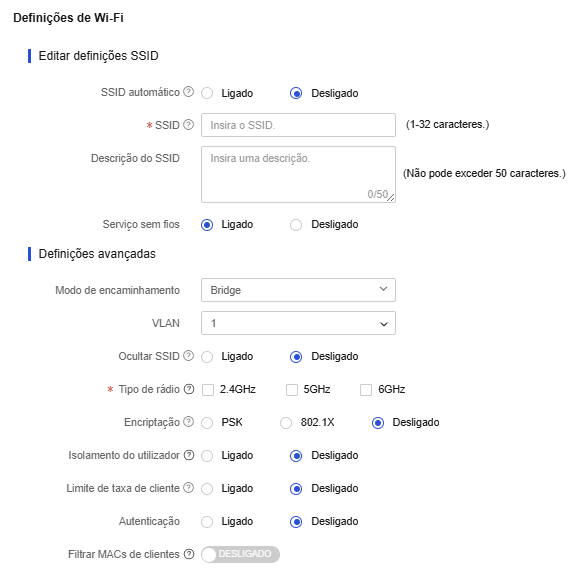
Wireless QoS
The Wireless QoS (Bandwidth Limit) feature provides advanced traffic control and bandwidth management per SSID. When enabled on any SSID of a radio, the processing of QoS policies shifts to software forwarding to allow the application of the configured rules. As a consequence, the radio's maximum forwarding capability may be reduced compared to the standard hardware-accelerated operation. This behavior applies to the radio as a whole and can influence the performance of other SSIDs configured on the same radio. It is recommended to enable this feature only when bandwidth control is a deployment requirement.
Encryption service configuration
To synchronize SSID information, click Sync SSID Info.
Ensure you have created a wireless service and configured SSID information on the device.
Note: This feature is available only for ACs with versions earlier than 5418 and routers with versions earlier than 0809.

Sync SSID Info
To synchronize wireless service settings on devices to INC Cloud, click Sync to Cloud. This operation synchronizes settings such as the wireless service name, SSID, and guaranteed bandwidth rate to INC Cloud.
Note: This feature is available only for ACs with versions earlier than 5418 and routers with versions earlier than 0809.
FAQ
I have successfully modified and deployed the authentication template settings. Why do the previous settings still take effect for clients that go online after deployment?
Verify that the settings were modified and deployed successfully. If the problem persists, clear the browser's access records and cache on the client.
The Authentication Templates page in the App Center does not display the devices available for template deployment. What should I do?
Verify that the device version meets the requirements. If not, upgrade the device to the latest version.
How can I change the SSID of a wireless service?
Change the Wi-Fi name in INC Cloud. For AC+fit AP networks, you can also change the Wi-Fi name in the AC. Unbind and then re-bind the service template from the authentication service.
How can I update my INC Cloud to use newly released features?
Features in INC Cloud are updated automatically and do not require manual operations. For new features in the authentication template, you might need to reconfigure and then release the template for the new features to take effect.
Why can a client go offline and then go online without being authenticated, even if free authentication is not configured?
The system does not remove the client entry from the authenticated client list immediately after a client disassociation event. The entry will not be removed until the idle timer expires or the administrator logs off the client. An offline client can go online without being authenticated if its entry still exists.
You can view client entries in INC Cloud or by executing the display portal user all
command.
Why does the number of authenticated clients exceed the total number of online clients?
This symptom occurs when a client has just gone offline. The system does not remove the client entry from the authenticated client list immediately after a client disassociation event. The entry will not be removed until the idle timer expires or the administrator manually logs off the client.
I configured the authentication settings on the device and in INC Cloud as required. The client access attempt can trigger portal authentication but fails to open the redirection page. What should I do?
This problem can occur if the network segment of the client's IP address is unknown to uplink
devices and packets cannot be transmitted back. To resolve this problem, configure the
nat outbound command on the device interface that connects the device to the
external network or use IGP to advertise the network segment in the network.
iOS clients cannot trigger authentication even if optimized captive-bypass is enabled. What should I do?
Execute the portal captive-bypass optimize delay seconds command to set the
captive-bypass protection timeout. The value range is 6 to 60 seconds and the default value is 6
seconds.
To avoid affecting device performance, do not set the timeout to a very high value.
APPENDIX A - AUTHENTICATION COMMANDS FOR THE DEVICE
This section describes the commands that need to be executed on the device for one-key, account, Facebook, dumb terminal, and guest authentication.
For application and Facebook authentication, you must configure settings in Configure Facebook authentication and Configure Facebook authentication, respectively, after completing the settings in this section.
To quickly execute these commands on the device, edit the highlighted sections as needed and paste all commands in the device's user view.
Note:
» Execute these commands only on versions earlier than 5405. Version 5405 and later support
automatic deployment of authentication configuration to devices and do not require manual
configuration of these commands.
» Ensure that the commands do not conflict with the existing configuration on the device.
» Ensure you have completed the configuration prerequisite tasks. For more information, see
Prerequisites.
                        system-view
                        domain cloud
                        authentication portal none
                        authorization portal none
                        accounting portal none
                        quit

                        portal web-server cloud
                        url  http://inccloud-captive.intelbras.com.br/portal/protocol
                        server-type oauth

                        if-match user-agent CaptiveNetworkSupport redirect-url  http://inccloud-captive.intelbras.com.br/generate_404
                        if-match user-agent Dalvik/2.1.0(Linux;U;Android7.0;HUAWEI redirect-url  http://inccloud-captive.intelbras.com.br/generate_404
                        if-match original-url http://captive.apple.com user-agent Mozilla temp-pass redirect-url  http://inccloud-captive.intelbras.com.br/portal/protocol
                        if-match original-url http://www.apple.com user-agent Mozilla temp-pass redirect-url  http://inccloud-captive.intelbras.com.br/portal/protocol
                        if-match original-url http://10.168.168.168 temp-pass
                        captive-bypass ios optimize enable
                        quit

                        wlan service-template cloud
                        portal enable method direct
                        portal domain cloud portal
                        apply web-server cloud
                        portal temp-pass period 20 enable
                        quit

                        portal local-web-server http quit
                        portal local-web-server https quit

                        ip http enable
                        ip https enable
                        portal host-check enable
                        portal user log enable
                        portal free-rule 1 destination ip 114.114.114.114 255.255.255.255
                        portal free-rule 2 destination ip any udp 53
                        portal free-rule 3 destination ip any tcp 53
                        portal free-rule 4 destination ip any tcp 5223
                        portal free-rule 5 destination oasisauth.intelbras.com
                        portal free-rule 10 destination short.weixin.qq.com
                        portal free-rule 11 destination mp.weixin.qq.com
                        portal free-rule 12 destination long.weixin.qq.com
                        portal free-rule 13 destination dns.weixin.qq.com
                        portal free-rule 14 destination minorshort.weixin.qq.com
                        portal free-rule 15 destination extshort.weixin.qq.com
                        portal free-rule 16 destination szshort.weixin.qq.com
                        portal free-rule 17 destination szlong.weixin.qq.com
                        portal free-rule 18 destination szextshort.weixin.qq.com
                        portal free-rule 19 destination isdspeed.qq.com
                        portal free-rule 20 destination wx.qlogo.cn
                        portal free-rule 21 destination wifi.weixin.qq.com
                        portal free-rule 22 destination open.weixin.qq.com

                        portal safe-redirect enable
                        portal safe-redirect method get post
                        portal safe-redirect user-agent Android
                        portal safe-redirect user-agent CFNetwork
                        portal safe-redirect user-agent CaptiveNetworkSupport
                        portal safe-redirect user-agent MicroMessenger
                        portal safe-redirect user-agent Mozilla
                        portal safe-redirect user-agent iPhone
                        portal safe-redirect user-agent micromessenger

Customer support: (48) 2106 0006
Forum: forum.intelbras.com.br
Chat support: intelbras.com.br/suporte-tecnico
Email support: suporte@intelbras.com.br
SAC: 0800 7042767
Intelbras S/A – Indústria de Telecomunicação Eletrônica Brasileira
Rodovia SC 281, km 4,5 – Sertão do Maruim – São José/SC - 88122-001
CNPJ 82.901.000/0014-41 - www.intelbras.com.br
Brazilian Industry